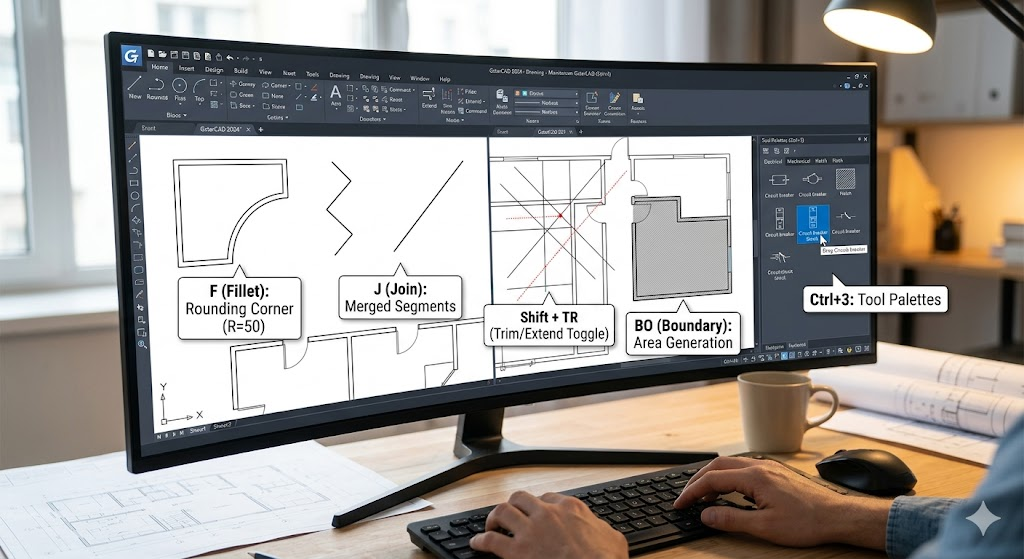
GstarCAD + CADprofi = maximum efficiency.
GstarCAD is a powerful CAD platform that combines advanced 2D tools and intelligent 3D direct modelling. In the interests of the highest quality of development, GstarCAD software manufacturer cooperates with application developers who create their products and expand the functionality of GstarCAD. One of these applications is CADprofi — a professional CAD ad-don that contains four industry modules: HVAC & Piping, Electrical, Mechanical and Architectural.
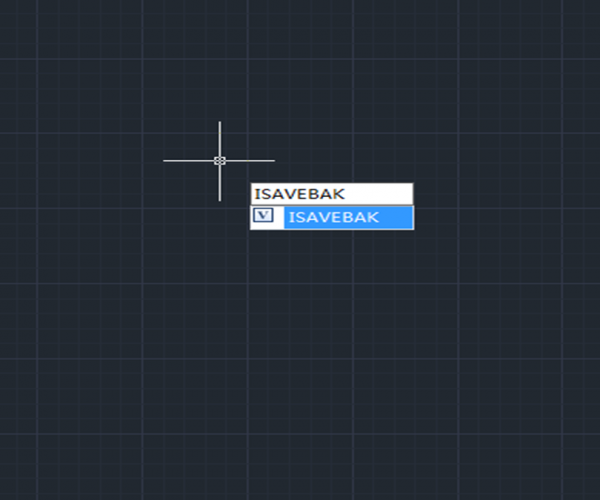
What is BAK? How to disable BAK?
If you feel that generating a bunch of BAK files takes up space, it is not necessary, you can let CAD not generate BAK files, the setting method is very simple. It can be set directly through the “Options” dialog box or directly through variables.

Trim Command for beginner
The Trim Command is one of the frequently used operations to modify the drawings and can be used to trim objects in order to make it join with other objects.

How to use Align command in 3 dimension
The Align command is also a 3D command that can be performed in 3D modeling. The basics are the same to that in the 2D drawing, just need to adjust the view to a proper angle in order to see the source point and the destination point

How to use the calculator in GstarCAD?
GstarCAD provides two calculators, one is quick calculator, a calculating dialog box similar to the one in Windows system. To open it, press CTRL + 8
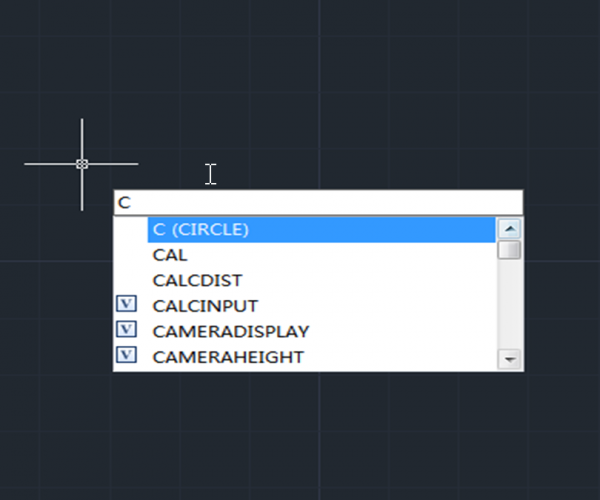
Ways to execute a command
There are some basic ways to execute a command in CAD system, just like in many other applications in Windows: drop-down menu, toolbar button, Ribbon and shortcut keys such as CTRL + S for Save, CTRL + C for Copy, etc.
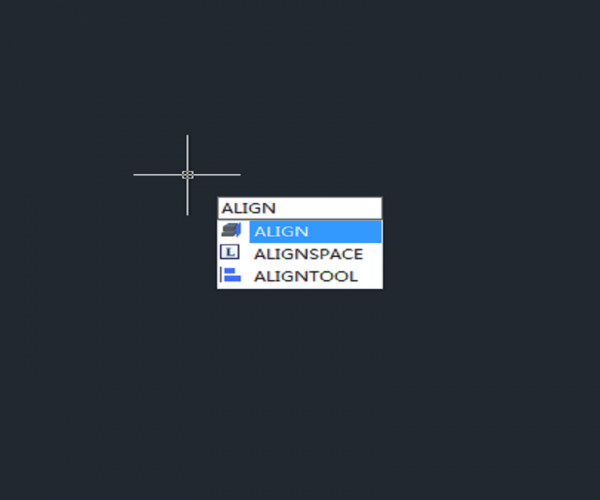
How to align objects in a different direction?
Executing Align command and specifying the first two source points and destination points, then it’s time for third point and the rectangular will be located to a different place
What is Align command and how to align two objects with Align command?
There is more than one way to align two objects, Align command is only one convenient way to do it.
The Align command can not only be used in 3D modeling but also in 2D drawing.

Extend Command for beginner
The Extend Command is one of the frequently used options to modify the drawing and can be used to extend object and make it connect with other objects in order to join with them.