
How to use the calculator in GstarCAD?
GstarCAD provides two calculators, one is quick calculator, a calculating dialog box similar to the one in Windows system. To open it, press CTRL + 8
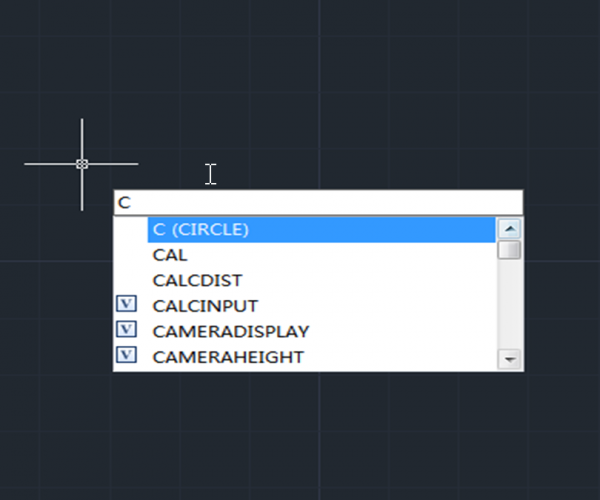
Ways to execute a command
There are some basic ways to execute a command in CAD system, just like in many other applications in Windows: drop-down menu, toolbar button, Ribbon and shortcut keys such as CTRL + S for Save, CTRL + C for Copy, etc.
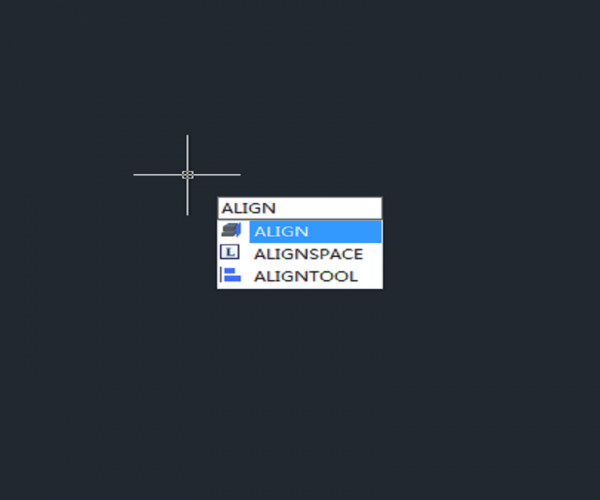
What is Align command and how to align two objects with Align command?
There is more than one way to align two objects, Align command is only one convenient way to do it.
The Align command can not only be used in 3D modeling but also in 2D drawing.

The Overkill Command
The OVERKILL command, which is used to delete duplicate objects, removes duplicate or overlapping lines, arcs, polylines, etc.

How to select objects or blocks with shared properties using Select Similar Command?
Sometimes, we need to select all objects or blocks with shared properties in order to delete them or count the number of a certain type of block. GstarCAD provides many ways to select objects in a drawing, among them is the very useful Select Similar Command.

Why I’m unable to edit by double-clicking the text?
By default, CAD supports operations to select objects before executing the command, so many users are accustomed to operating after selecting the graphics that they are going to edit. But this can be changed. You can execute commands first and then select the graphics to be edited.

CAD Mirror Command
The Mirror (MI) command is used to create mirror copies of selected objects and remains one of the least used commands for years.
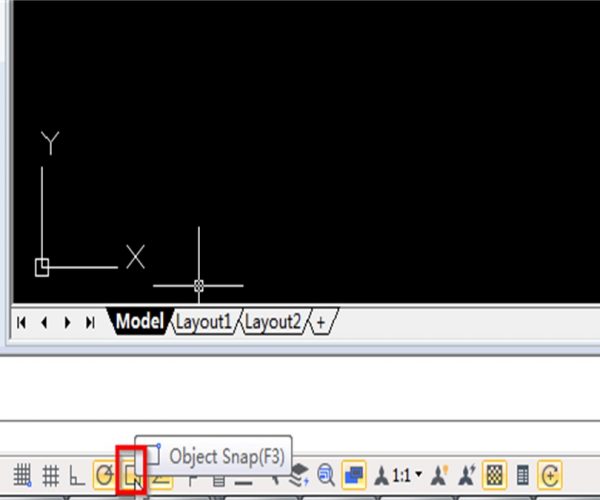
Tips for Object Snap in CAD
The Object Snap in CAD can help us draw or locate other graphics based on some characteristic points such as endpoint, midpoint, center of circle and intersection point. Object Snap is the most frequently used drawing tools in CAD and this post will talk about the FAQ and basic tips for Object Snap.
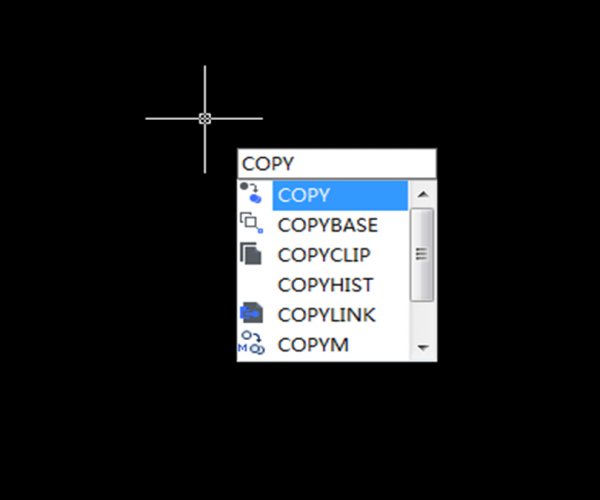
Tips for COPY command in CAD
There are lots of commands in the Modify bar, you may think that COPY command is one of the most easy-to-use commands, but this may not be the case for some newbies, so the following tutorials are for the newbies as how to better use the COPY command.
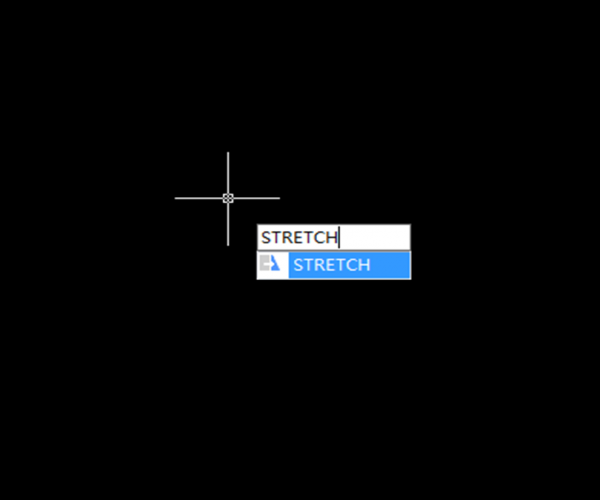
Tips for CAD Stretch command
The Stretch command is a simple and special command: on one hand, it’s as simple and easy-to-operate as the Move command, on the other hand, it has different ways from other commands in selecting objects. Why is that? When using other commands, we need to either select the whole object such as the commands of Move, Rotate, Copy, Mirror, Zoom, or click on the part that we want to edit such as the command of Extend, Trim, Lengthen and so on.







