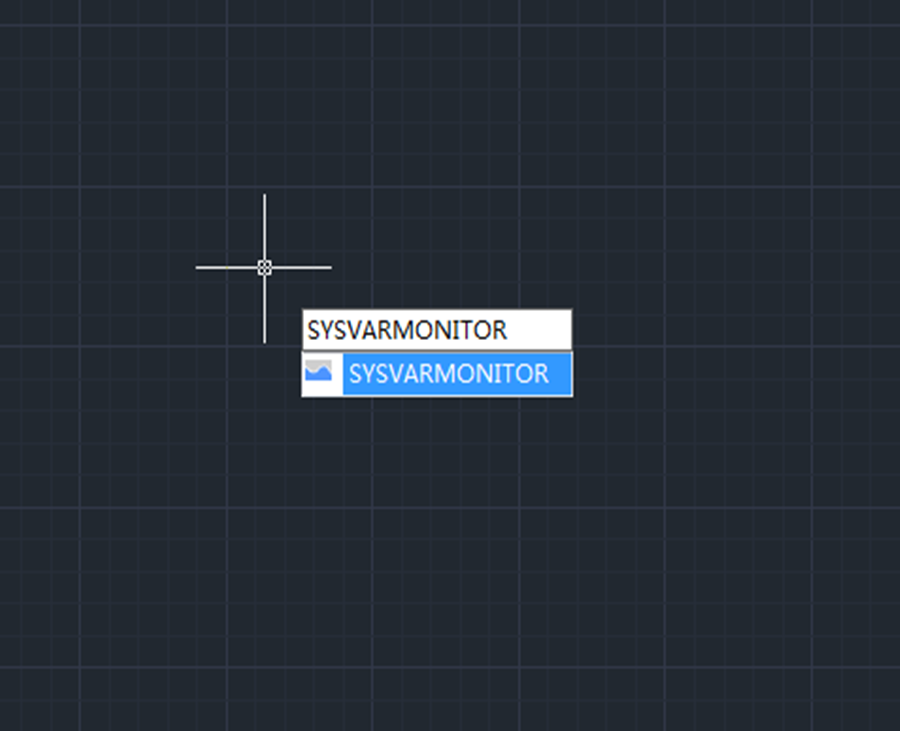
Monitor your system variables with GstarCAD 2023
System variables play a very important role in CAD drafting for they control how certain commands work or the appearance of the user interface. Therefore we can change the value of a system variable to change the behavior of commands.
GstarCAD 2023 Beta Version is available
The Beta version of GstarCAD 2023 has just been released, please feel free to download and try for free. Let’s explore the enhancements and newest features in GstarCAD 2023.
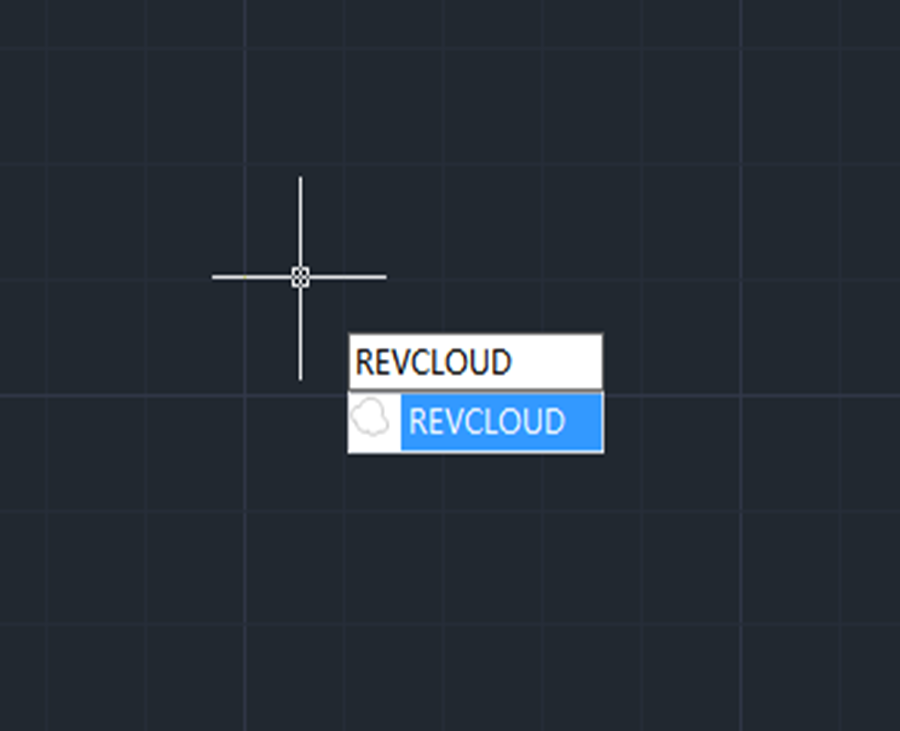
How to create revision clouds with REVCLOUD command?
Revision Cloud consists of a series of arcs to quickly and easily highlight parts of a drawing that has been modified or revised, the revision cloud gets its name because of its cloud shape form.
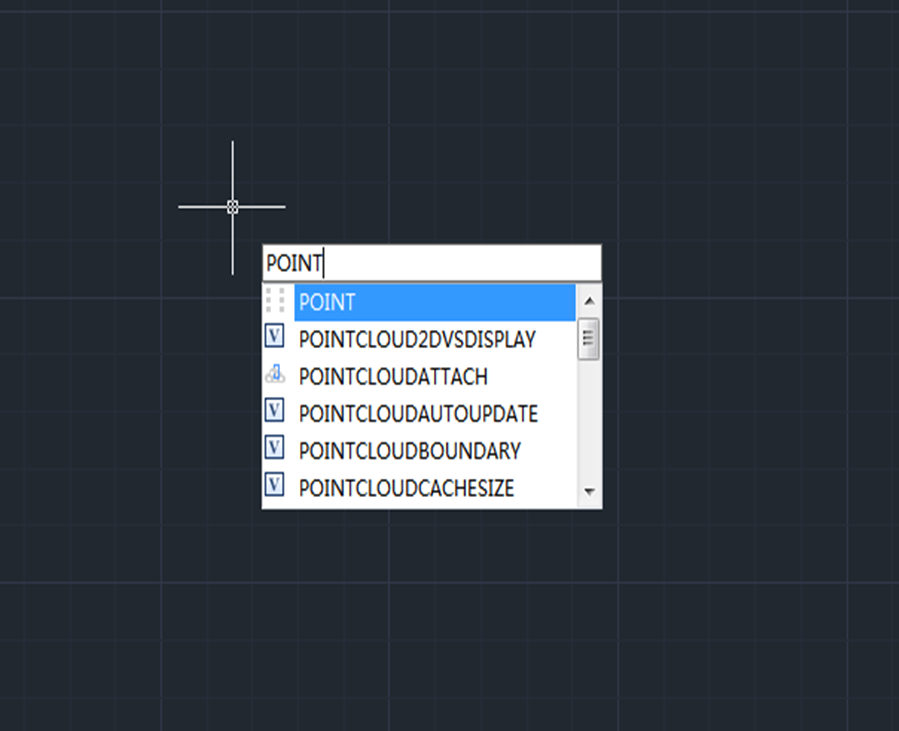
How to create point objects?
Point objects can be used as nodes or reference geometry for object snaps and relative offsets. We can create a single point objects, multiple point objects and more.

Troubleshooting: Why I can’t find text using Find & Replace?
When we want to batch find & replace text, we can use Find & Replace function, but sometimes we can see the text, but just can’t find it using Find command, how is that?

How to change a drawing’s unit from millimeter to meter?
First of all, let’s get this straight: millimeter or meter is meaningless for a single drawing, for example, the drawing unit is set to millimeter, and you draw a line of 1000 units long, then you change the drawing units to meter, but the line is still 1000 units long.
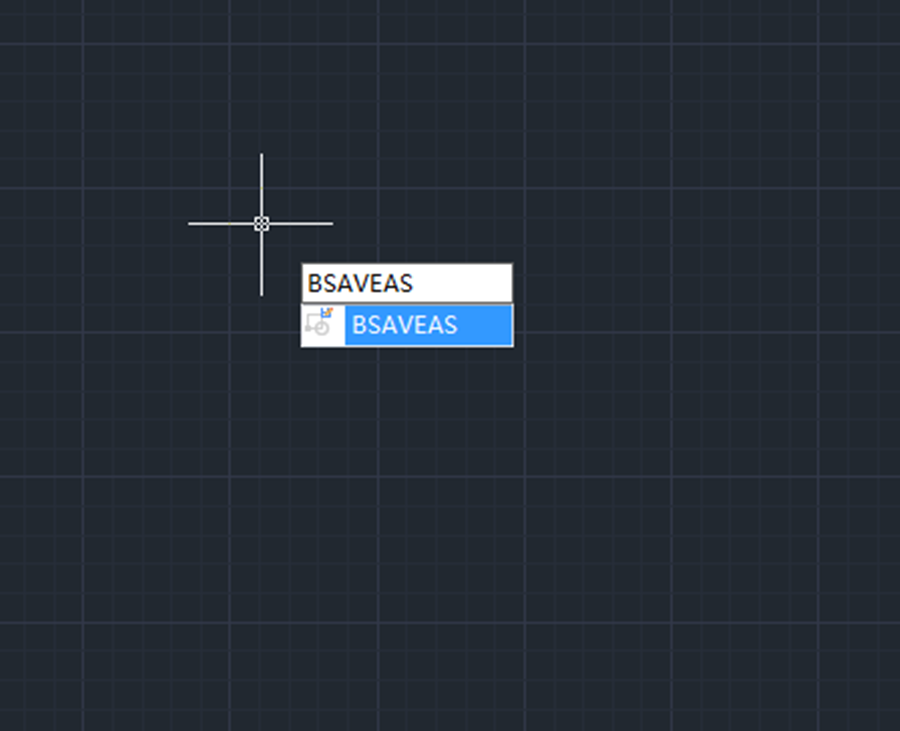
How to save a block as a new block in CAD?
How to save a block as a new block in CAD? Double-click the block to enter Block Editor

How to define commands in CUI?
Enter CUI, press Enter key to open the Customize User Interface dialog box, right-click on a random command from Command List, and select New command

Small Tip: WYSIWYG (What you see is what you get)
Have you encounter the issue that you’ve successfully enter text using Mtext, but when you click OK, you can’t see the text just disappears, you can’t find it anywhere.
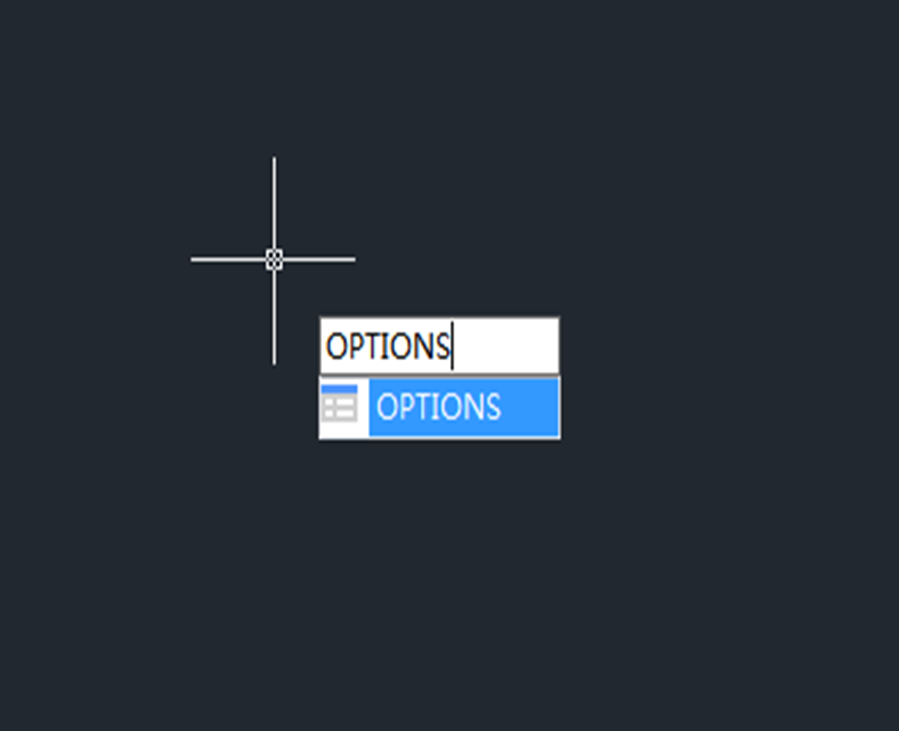
Why window selection is disabled
If window selection is disabled, check your settings in the Options dialog box.








)
