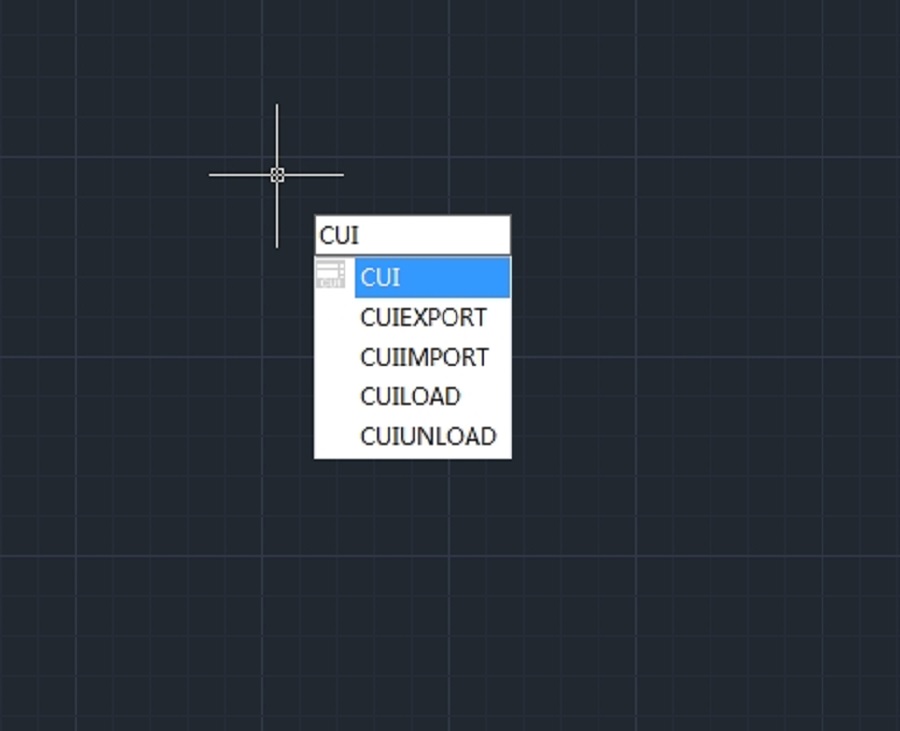
The user interface provides users with all the tools needed for design. Users can increase productivity and streamline workflow with customized user interface.
Drag & Drop Customization
An innovative way to customize user interface must be easy and quickly according to user needs, so this is possible by drag and drop action, that means users can drag any command from the command list and drop it into workspaces elements like ribbon panels and toolbars that are visible at top right corner of the CUI dialog box. Users will not have restrictions to place anywhere or even arrange a preferred command on a panel or toolbar. UI customization has never been easier and flexible through Drag & Drop action.

Brief introduction of CUI dialog box
1.CUI dialog box
Now the CUI dialog box is divided into three tabs: Elements Customization, Workspace Customization and Transfer tab in which the main attraction is the Elements Customization tab through its new way of customization (Drag & Drop).

2. Right click menu
Context menu is available for different interface element as shown below

3. Find command
There are several methods to quickly find the command you want, with these methods, you never need to browse the command from the top of the list until the end which greatly enhance your work efficiency.

1-Filter the command by Category: Click the button right side and select the category the command belongs which will reduce the command search scope.

2-Filter a command by entry relevant keywords: For example, input “dimension” in the filter, all the commands contains the word “dimension” will be shown, reducing the number of commands to browse.

3-Command cleaner: If you input the keyworkds in the filter, the magnifying glass icon will automatically change to cross icon which is used to clean the content in the filter, meanwhile, the following command list will return to the default state.
4-Find and replace: In Find tab input the command you want to find and click Find Next, the commnad you searched will be postioned accurately. In replace tab, you can replace one command with another command, but we suggest not change the standard command name and description.

5-Create a new command: If it is necessary to add custom development prgram command to the command list, you can set the items follow the current command settings as shown below

Restore and reset
If all the customization operation has been finished, but you made some mistakes when customizing CUI or you are not satisfied with the effect, restore and reset can help you recover to the original settings.
Restore:Restore the backup Settings, click “Apply” button, the data before modifying will be saved as backup files which are used for recovery.
Reset:Recover to the initial setting when first installing GstarCAD.

Discover more from Gstarsoft's Blog
Subscribe to get the latest posts sent to your email.







