How to change the background color in CAD ?

CAD software comes with default background color of black in Model space and white color in Layout space, but we can modify the color with just a few clicks.

How to change the background color in Model space

  1. To customize the background color, we’ll need to open the “Options” dialog box, shown as below,
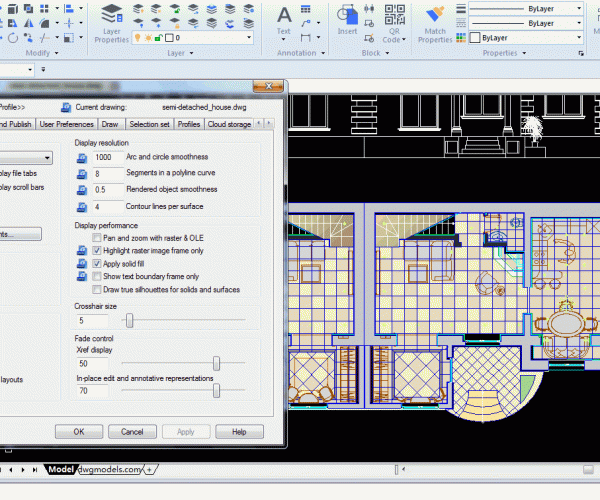
This is an image of Options dialog box in CAD software. We can get the Options dialog box by either entering OP in the command line or right-clicking in the drawing area and select "Options".

To open it, we can either enter “OP” and then press Enter key or right-click the drawing area and select “Options”, shown as below,

2. When the “Options” dialog box is open, switch to the “Display” tab, and click “Colors” button to pop up the “Drawing Window Colors”, shown as below,

Click to enlarge image

3. As we can see in the dialog box, the default color is black, to change it to yellow, just select Yellow from the Color list, shown as below,

If you haven’t found your preferred color, just click the “Select Color” option to enable more colors,

4. After you select the color, click ”Apply & Close” ,

Click to enlarge image

How to change the background color of layout ?

In a layout, you can change either the Uniform background color or the Paper background color.

  1. To customize the background color of layout, we’ll also need to open the “Drawing Window Colors”, but this time we need to select “Paper Layout” under Context, as shown below,

2. As we can see in the above picture, the default color for Uniform background is white, we can select the color you prefer in the drop down menu Color. In my case I am selecting Yellow, then click “Apply & Close” button, voila, now it’s yellow,

3. To change the Paper background, just select “Paper background” under “Interface element”, as shown below, then select your preferred color in the Color menu,

4. In my case, I am selecting Blue, then click “Apply & Close”, the Paper background is blue now,

Want to go back ? Just Restore !

You can always go back to the default color by clicking the following button, depending on what you want to restore,


Discover more from Gstarsoft's Blog

Subscribe to get the latest posts sent to your email.

GstarCAD Blog

www.gstarcad.net

Related Posts

Why Cloud Matters for CAD: From Standalone Drafting to Connected Workflows

For many engineers and designers, CAD work has long been centered on desktop software. A drawing is created on a workstation, saved as a local file, and then shared with…

Design Intelligence for an Integrated Future: Gstarsoft Strengthens Its Open CAD+BIM+AI Ecosystem

Xi’an, China— June 17, 2026 — Gstarsoft, the global provider of industrial software and digital design solutions, today unveiled its latest design portfolio spanning CAD, BIM, cloud solutions and AI…

Leave a Reply

Don't Miss out

Why Cloud Matters for CAD: From Standalone Drafting to Connected Workflows

  • July 15, 2026
Why Cloud Matters for CAD: From Standalone Drafting to Connected Workflows

Design Intelligence for an Integrated Future: Gstarsoft Strengthens Its Open CAD+BIM+AI Ecosystem

  • June 19, 2026
Design Intelligence for an Integrated Future: Gstarsoft Strengthens Its Open CAD+BIM+AI Ecosystem

GstarCAD 2027: Unleashing Performance and Innovation for Modern Engineering

  • June 11, 2026
GstarCAD 2027: Unleashing Performance and Innovation for Modern Engineering

The Intersection of Art and Efficiency: A49’s Digital Evolution with GstarCAD

  • June 4, 2026
The Intersection of Art and Efficiency: A49’s Digital Evolution with GstarCAD

Top 5 Essential GstarCAD Shortcuts for Designers

  • May 29, 2026
Top 5 Essential GstarCAD Shortcuts for Designers

Common Methods for Inserting Images in GstarCAD

  • May 22, 2026
Common Methods for Inserting Images in GstarCAD

Discover more from Gstarsoft's Blog

Subscribe now to keep reading and get access to the full archive.

Continue reading

Discover more from Gstarsoft's Blog

Subscribe now to keep reading and get access to the full archive.

Continue reading