A DWG file can grow far beyond what its visible geometry seems to justify. Common causes include unused definitions, duplicate objects, imported content, empty text, zero-length geometry, registered application data, obsolete DGN linetype data, or years of copy-and-paste history. A large DWG does not necessarily indicate corruption, but unexpected growth often makes a drawing slower to open, save, share, and review.
The safest way to reduce a DWG file is not to delete objects at random. Start with a copy, repair database errors, remove items that are genuinely unused, clean duplicate geometry selectively, perform a controlled full save, and then verify the result. GstarCAD 2027 provides tools for this workflow, including AUDIT, PURGE, OVERKILL, WBLOCK, and BATPURGE. These commands repair or clean supported drawing data; they do not guarantee that every DWG will become smaller.
Quick answer for reducing a large DWG file
For most drawings, this sequence offers the best balance of cleanup and control:
- Save a backup under a new file name and record the size of the DWG itself.
- Run AUDIT and allow the program to correct detected errors.
- Run PURGE and select only the unused-item and cleanup options appropriate for the drawing.
- Use OVERKILL on a controlled selection to remove duplicate or overlapping geometry.
- Review imported PDFs, images, OLE objects, dense hatches, and unusually detailed blocks.
- For a controlled size test, set ISAVEPERCENT to 0 and use SAVEAS with the same DWG version.
- If the file remains abnormally large, consider using WBLOCK to write selected objects to a separate DWG, then verify the result carefully.
- Reopen the cleaned file, verify its content, and restore ISAVEPERCENT to the preferred working value.
This order matters. It begins with low-risk database checks and moves toward more selective changes only when they are needed.

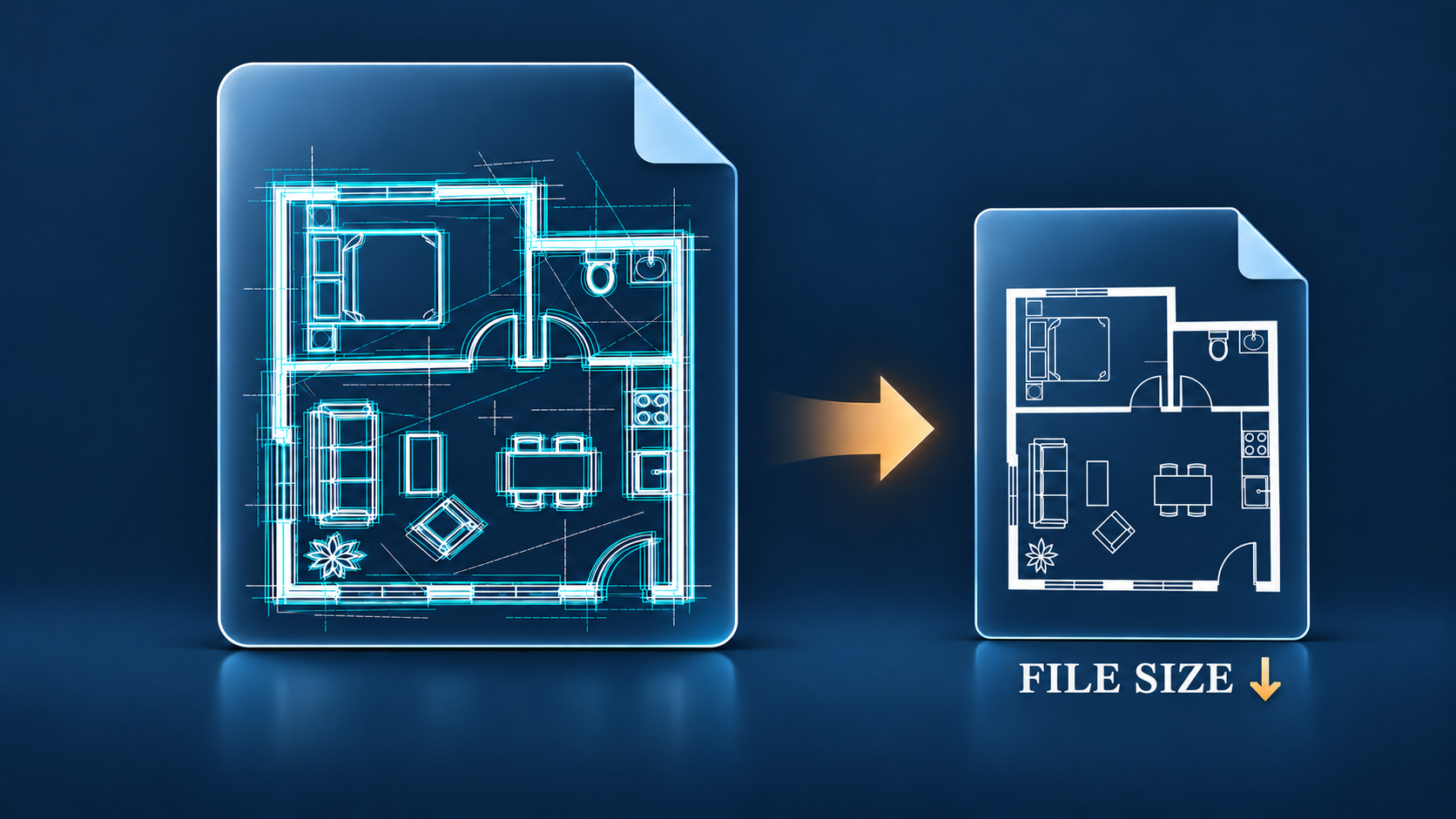
Figure 1: A before-and-after file properties graphic showing one DWG reduced after a controlled cleanup.
Why DWG files become unexpectedly large
Unused definitions stay in the drawing database
A drawing may contain layers, blocks, linetypes, text styles, dimension styles, materials, or other named items that no longer appear on screen. They can remain after repeated editing, template changes, or content copied from other projects. Individually they may be small, but their number and complexity can accumulate.
Duplicate and overlapping objects add hidden weight
Two lines in exactly the same location look like one line. The same is true for overlapping polylines, arcs, and repeated block content. Duplicate geometry can increase file size and can also create problems during selection, hatching, quantity takeoff, plotting, or downstream exchange.
Imported content can be much more detailed than necessary
PDF imports, converted vector files, survey data, manufacturer details, and externally supplied blocks may introduce thousands of short segments or dense hatch patterns. A small visual detail can therefore carry a large amount of geometry.
Empty objects and orphaned data can accumulate
Zero-length geometry, empty text objects, registered application data, and obsolete DGN linetype data may not be obvious during normal drafting. GstarCAD 2027 includes cleanup tools that can remove several of these categories when the relevant options are selected.
Embedded content increases the package size
Raster images, OLE objects, and other embedded resources can make a drawing much larger. External references may keep the main DWG smaller, but they still need to be managed carefully when the project is shared.
File errors may create unusual behavior
Unexpected file growth, slow saves, or repeated warnings can sometimes indicate database errors. File size alone does not prove corruption, but it is a reason to run a controlled integrity check before deeper cleanup.
Why a DWG can become larger after cleanup
Removing objects does not always produce an immediately smaller file. DWG size is affected by the way the drawing is saved as well as by the amount of visible geometry.
Incremental saves can retain unused space
GstarCAD uses the ISAVEPERCENT system variable to control how much potentially wasted space is allowed during incremental saves. Its default value in GstarCAD 2027 is 50. When ISAVEPERCENT is set to 0, every save is a full save and the accumulated wasted-space estimate is reset. This can make the result of a cleanup easier to measure, although full saves may take longer on large drawings.
AUDIT can recover data instead of removing it
AUDIT checks drawing integrity and corrects supported errors. In some cases, a repair can make previously unreadable or inconsistent records valid again. The repaired drawing may therefore be healthier without being smaller.
Cleanup commands are not compression commands
PURGE removes supported unused data, while OVERKILL removes or combines supported duplicate geometry. If the drawing contains little eligible data, the reduction may be too small to offset changes in the saved DWG structure. WBLOCK also writes selected content and its required dependencies to a new file; it does not promise automatic compression.
The folder may grow even when the DWG does not
When backup creation is enabled, GstarCAD can create or update a file with the .bak extension. AUDIT can also create an .adt report when AUDITCTL is set to 1. Compare the two DWG files directly rather than comparing the total size of their folders. Keeping a backup is normally more important than saving a small amount of disk space.
Save settings must stay consistent during comparison
A reliable before-and-after test uses the same DWG version, a new file name, and the same drawing scope. Compare the files only after saving, closing, and reopening the cleaned copy.
A safe step-by-step cleanup workflow
Step 1 Make a protected copy
Never begin major cleanup on the only copy of a production drawing. Save the file with a clear name such as Project_A_Cleanup_Copy.dwg, record the original file size, and keep the source available until the cleaned version has passed review.
Step 2 Check drawing integrity with AUDIT
Run AUDIT to examine the integrity of the current drawing and correct errors that the command can repair. This is a sensible first step because a healthier database makes later cleanup more predictable.
If the drawing cannot be opened normally, use RECOVER instead of relying on AUDIT alone. RECOVER is designed to repair and open a damaged drawing file.
Step 3 Remove genuinely unused items with PURGE
PURGE removes unused named items such as block definitions and layers. When the relevant options are selected, it can also remove zero-length geometry and empty TEXT or MTEXT objects. GstarCAD’s documentation notes that these unnamed objects are not removed when they are inside blocks or on locked layers. Review the available categories instead of treating every item as disposable.
The goal is not to produce the smallest possible number at any cost. The goal is to remove baggage that has no role in the deliverable.
Step 4 Clean duplicate geometry with OVERKILL
OVERKILL can remove duplicate or overlapping lines, arcs, and polylines. It can also combine partially overlapping or end-to-end objects in appropriate cases.
Use it on a controlled selection first. Tolerance settings can affect what the command considers equivalent, so inspect the result carefully around dimensions, boundaries, centerlines, symbols, and other precision-sensitive content. If a drawing contains several disciplines, process one logical area or layer group at a time.

Figure 2: GstarCAD 2027 drawing with duplicate lines highlighted before and after running OVERKILL
Step 5 Review high-detail and embedded content
If file size is still high, inspect the elements most likely to carry excessive data:
- Imported PDF geometry made from many short segments
- Dense hatches used over large areas
- Highly detailed manufacturer blocks
- Large raster images or embedded OLE objects
- Repeated blocks that contain unnecessary nested detail
- Survey or point data that is no longer needed in the working file
Simplify only when the change is compatible with the drawing’s purpose. A construction detail, legal boundary, or fabrication profile may need its full precision even if it is data-heavy.
Step 6 Create a separate drawing with WBLOCK when needed
WBLOCK writes selected objects or a block to a separate drawing file. If only a defined subset of model content is required, this can help isolate that content from unrelated material in the source drawing. WBLOCK is not a repair command, however, and it does not guarantee a smaller or error-free file.
This is a stronger intervention than PURGE. After using WBLOCK, confirm the selected scope, base point, units, coordinate position, layers, annotation settings, references, and project metadata. If paper-space content is required, confirm exactly what the chosen WBLOCK source option writes to the new file. Do not use a selected-object export as a substitute for the complete project drawing unless the deliverable scope allows it.
Step 7 Use BATPURGE for a drawing set
Cleaning one file is manageable. Cleaning dozens of consultant or archive drawings manually is not. BATPURGE in GstarCAD 2027 can process multiple DWG files without opening them. In addition to unused named items such as blocks, layers, linetypes, dimension styles, and text styles, its documented cleanup options include registered application data, zero-length geometry, empty text objects, and obsolete DGN linetype data listed as orphaned data.
Batch cleanup should follow a defined rule and a backup policy. Test the settings on a representative copy before applying them to an entire project folder.
Step 8 Perform a controlled full save
Before deciding whether cleanup changed the file size, enter ISAVEPERCENT, set the value to 0, and use SAVEAS to create a new file in the same DWG version as the source. Close and reopen the saved copy before comparing its size with the original.
ISAVEPERCENT is stored in the registry, so the change affects subsequent saves rather than only one drawing. After the comparison, restore it to the preferred working value. The GstarCAD 2027 default value is 50; leaving it at 0 makes every save a full save and may increase save time on large drawings.
Do not disable BAK creation merely to make the project folder look smaller. A BAK file is a separate recovery copy and is not part of the DWG file size.
Step 9 Verify the cleaned result
Reopen the cleaned DWG and check more than the file size. A reliable review includes:
- Model space and every required layout
- Layer visibility, color, linetype, and lineweight
- Text styles, custom fonts, dimensions, and leaders
- Blocks, attributes, tables, and fields
- Xrefs, images, underlays, and paths
- Named views, viewports, and viewport scales
- Plot preview and a test PDF
- Key dimensions or coordinates against the source file
If the drawing is client-facing, compare the final PDF with the last approved issue before distribution.
What should not be removed simply to save space
Some content may look unused while still supporting a project standard or later workflow. Be cautious with title blocks, approved styles, coordinate control objects, legally significant survey data, custom symbols, or layers reserved for downstream teams.
Likewise, do not detach references or replace fonts solely to reduce the DWG size unless the deliverable requirements allow it. A smaller drawing that no longer reproduces correctly is not a successful cleanup.
How GstarCAD 2027 supports a cleaner workflow
GstarCAD 2027 brings the cleanup sequence into one DWG-centered environment. AUDIT and RECOVER help address file integrity, PURGE removes supported unused data, OVERKILL targets redundant geometry, WBLOCK writes selected content to a separate drawing, and BATPURGE extends cleanup across multiple files.
Frequently asked questions
Does a large DWG file always mean the drawing is corrupted
No. The file may simply contain dense geometry, images, detailed blocks, many layouts, or a long history of imported content. However, unusual growth combined with errors or slow saves is a good reason to run AUDIT and inspect the drawing.
Can PURGE delete visible geometry
PURGE is intended to remove unused named items and, when selected, supported empty or zero-length objects. GstarCAD does not remove zero-length geometry or empty text located inside blocks or on locked layers. PURGE does not replace a visual review, so always work on a copy and verify the result.
Why is the DWG still large after PURGE
The remaining size may come from visible geometry, duplicate objects, high-detail imports, images, embedded content, or records that are still referenced. Continue with selective inspection rather than repeatedly purging without a diagnosis.
Why did the DWG become larger after AUDIT or PURGE
The drawing may have been saved incrementally, AUDIT may have restored valid data, or the comparison may include a new BAK file. Set ISAVEPERCENT to 0 for one controlled full-save comparison, save to the same DWG version, close and reopen the file, and compare only the DWG files.
Should every drawing be cleaned before it is sent to a client
Not necessarily. Cleanup is most useful when a file is unexpectedly large, slow, inconsistent, or full of unused project data. The deliverable must still preserve required information and standards.
A smaller file should also be a safer file
The best DWG cleanup preserves design intent while making the drawing easier to open, review, and share.
GstarCAD 2027 gives CAD teams a practical set of tools for that job, from one-file troubleshooting to batch cleanup across a drawing set. Teams evaluating a more efficient DWG workflow can download GstarCAD 2027 and test the process on copies of their own project files.
Explore the full range of Gstarsoft products on the Official Website.
Ready to try GstarCAD 2027? Visit the GstarCAD Eshop to get started.
Discover more from Gstarsoft's Blog
Subscribe to get the latest posts sent to your email.