How to change referenced file layer properties in master file

When you work with engineers and architects, they might use your structure drawings as a reference in their drawings.

The problem is each engineer probably has their own standard. You might need to change layer properties for their drawings so it can fit your standard. So how you can do that? Do you have to create a copy of the drawing, make necessary changes before you can use it as a reference? That would defeat the purpose of XREF, isn’t it?

Changing layer properties in master file

Before we start, let’s make a naming convention to avoid confusion:

We will call the file where you attach the external references as master file.

We will call the attached reference as referenced file.

1. Try to attach a XREF or external reference.

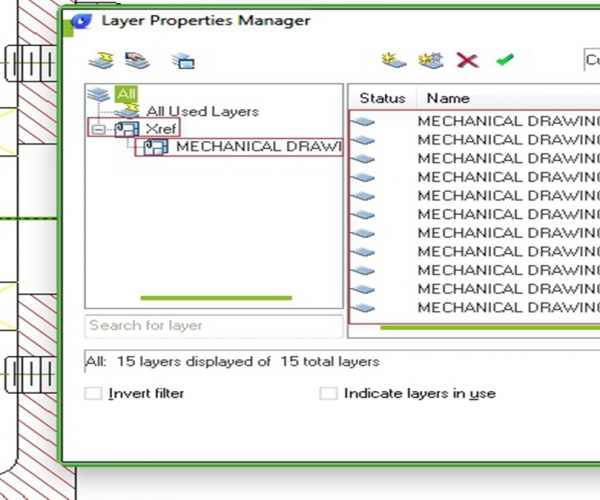
2. Open the layer properties manager. This will list the layers from referenced file as well.

3. Under XREF category you will see all referenced files name. When you select the file name it will only list the layers in that file. You should see the layers as FILE NAME | LAYER NAME (2).

You can change the properties here. Whatever you do here, will not change the original layer properties. Try to change color, line weight, freeze/thaw, etc.

5. Save the master file and try to open the referenced file. You should see it will not change the original file layer properties. The properties are specific for master file only.

  • GstarCAD Blog

    www.gstarcad.net

    Related Posts

    The Ultimate Guide to GstarCAD Mechanical 2026: The Future of Manufacturing Design

    GstarCAD Mechanical 2026 drafting/design software, covers all fields of mechanical design.

    How to Calculate CAD Area Quickly?

    As a CAD designer, are you frustrated by the cumbersome and error-prone manual CAD area calculation? GstarCAD offers multiple efficient CAD area calculation methods!

    Leave a Reply

    Don't Miss out

    Gstarsoft Showcases Integrated CAD + BIM Solutions at BIM World Paris 2026

    • April 3, 2026
    Gstarsoft Showcases Integrated CAD + BIM Solutions at BIM World Paris 2026

    Boost CAD Productivity with GstarCAD 2026’s XTP Import Feature

    • March 24, 2026
    Boost CAD Productivity with GstarCAD 2026’s XTP Import Feature

    Case study: How TopenTech Optimized Equipment Diagnostics and Field Productivity with GstarCAD

    • March 9, 2026
    Case study: How TopenTech Optimized Equipment Diagnostics and Field Productivity with GstarCAD

    The Ultimate Guide to GstarCAD Mechanical 2026: The Future of Manufacturing Design

    • January 30, 2026
    The Ultimate Guide to GstarCAD Mechanical 2026: The Future of Manufacturing Design

    GstarCAD 2026 DWG Comparison: Boost Design Efficiency

    • January 16, 2026
    GstarCAD 2026 DWG Comparison: Boost Design Efficiency

    How to Calculate CAD Area Quickly?

    • December 25, 2025
    How to Calculate CAD Area Quickly?

    Discover more from Gstarsoft's Blog

    Subscribe now to keep reading and get access to the full archive.

    Continue reading