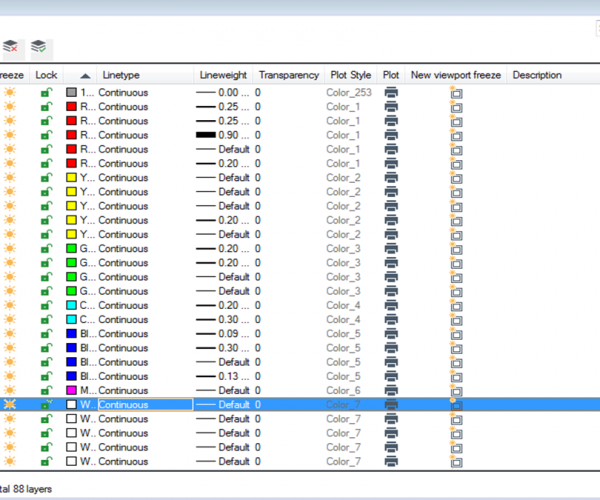
Every time you create a new drawing, you will see a default layer: Layer0. You can’t delete it.
Then when you define their properties such as color, line weight, etc, you will see ByLayer and ByBlock properties. Most of you might already know what ByLayer means. But do you also know what does ByBlock behavior?
- Layer0is a default GstarCAD layer. You can create geometry in your blocks on it. When you insert those blocks, they will use active layer. When you move this block to different layer, the objects in it will use it and ignore Layer 0.
- When you define object properties (color, line weight, etc) to ByLayer, all of it properties will use the same properties as it’s defined in the layers’ properties.
- When you create geometries in your block using ByBlock, then you can override its properties after the block has been placed.
- When you create geometries in your block other than ByLayer or ByBlock, then you can’t override them after your block has been placed.
Confused? Let’s create some example to comprehend this better.
1. Open a new file and create two layers, you can give them any name. Set different color and lineweight so we can easily distinguish them later.

2. Now we will create 4 objects, in this example I use circle.
- First circle use layer0, color: ByLayer, line weight: ByLayer
- Second circle use layer0, color: ByBlock, line weight: ByBlock.
- Third circle use layer0, color: red, line weight: 0.5 (we set this high so can be easier to see).
- The last one use layer1, color: ByLayer, line weight: ByLayer.
Create 4 blocks from each of the circle. Now select all those four, and then change their layer to Layer2. You can see block 1 and 2 use the properties, but block 3 and 4 still using its own properties.

3. Now override the color and line weight. Use color green, and line weight 2. You can see that the only block using the overridden properties is block no. 2!

Only block no.2 using the block properties, because we set it the geometry properties to by block.
Now freeze Layer1. We can see the block no. 4 disappeared, because the object in it was created on it.
Unfreeze Layer1, so we can see block no. 4 back. Now freeze layer2. Remember, we have moved all of the blocks to that layer.
What happen?
All of the blocks disappear, including block no. 4! This block also disappear because the block itself using Layer2. When we freeze Layer1, the block is actually still showing. But the geometry inside it will be disappeared. This will be clearer if we have another object with different layer in that block.
Unfreeze Layer2, and then freeze Layer0. None of the blocks disappears! Remember that we created geometry in block 1, 2, and 3 using Layer0? They will ignore it and use the new properties.
If you want to understand more about this behavior, try to create more objects in your blocks. Set them to different properties.
Discover more from Gstarsoft's Blog
Subscribe to get the latest posts sent to your email.