How to Change Font Styles in CAD Software

To change font styles in CAD software, follow these general steps:

Open the Text Style Manager:

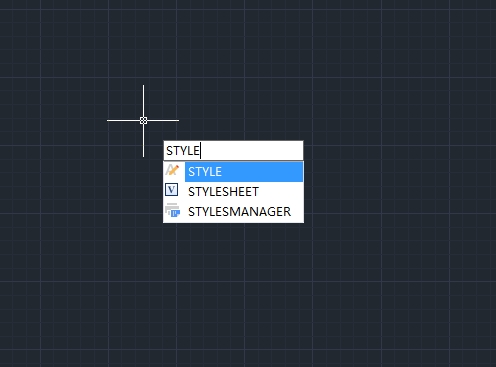
Type STYLE in the command line and press Enter. This opens the Text Style dialog box.

Create a New Text Style:

Click on the “New” button to create a new text style.

Enter a name for the new style and click OK, shown as below,

Select Font:

In the Text Style dialog, select the font you want to use from the Font Name drop-down menu.

You can also adjust the height, width factor, and oblique angle if needed.

Set as Current:

After configuring your font settings, click on the “Set Current” button to make this the active text style.

Apply the Text Style:

When you create text in your drawing, make sure to select the new text style from the properties toolbar or the text creation dialog.

Close the Text Style Manager:

Once done, close the Text Style dialog box to return to your drawing.


Discover more from Gstarsoft's Blog

Subscribe to get the latest posts sent to your email.

GstarCAD Blog

www.gstarcad.net

Related Posts

How GstarRender Turns Your Ideas into Stunning, Presentation-Ready Design Visuals

Design visualization often takes time. A concept may begin as a sketch, reference image, or simple description, but turning that idea into a polished rendering usually requires repeated modeling, material…

Do You Really Need Everything in AutoCAD? Why GstarCAD Is Enough for Many CAD Workflows

When companies compare CAD software, they often begin with a long feature checklist. The more functions a product offers, the more capable it may appear. But for engineers, designers, and…

Leave a Reply

Don't Miss out

The Question Will Not Be “CAD or BIM,” but How They Work as One

  • August 21, 2026
The Question Will Not Be “CAD or BIM,” but How They Work as One

How GstarRender Turns Your Ideas into Stunning, Presentation-Ready Design Visuals

  • August 18, 2026
How GstarRender Turns Your Ideas into Stunning, Presentation-Ready Design Visuals

Do You Really Need Everything in AutoCAD? Why GstarCAD Is Enough for Many CAD Workflows

  • August 13, 2026
Do You Really Need Everything in AutoCAD? Why GstarCAD Is Enough for Many CAD Workflows

Best Free CAD Software Options in 2026

  • August 5, 2026
Best Free CAD Software Options in 2026

Beyond 2D: How CAD Is Evolving into the Foundation of Intelligent Engineering

  • August 4, 2026
Beyond 2D: How CAD Is Evolving into the Foundation of Intelligent Engineering

Parametric Constraints in Dynamic Blocks: What’s New in GstarCAD 2027

  • July 29, 2026
Parametric Constraints in Dynamic Blocks: What’s New in GstarCAD 2027

Discover more from Gstarsoft's Blog

Subscribe now to keep reading and get access to the full archive.

Continue reading

Discover more from Gstarsoft's Blog

Subscribe now to keep reading and get access to the full archive.

Continue reading