The command line in your CAD software serves as an important way for controlling and manage your CAD. Sometimes it is possible for the command line to disappear, but don’t worry, we can get it back.
Causes of command line go missing

The command line in CAD (Computer-Aided Design) software can go missing due to several reasons:
User Interface Settings:
The command line might be hidden due to changes in the workspace or user interface settings. Users can usually toggle its visibility through the view menu or by using specific commands.
Corrupted Configuration Files:
Sometimes, configuration files may become corrupted, leading to display issues. Resetting the software to its default settings can often resolve this and get the command line back.
Screen Resolution or Display Issues:
Changes in screen resolution or using multiple monitors can cause the command line to move off-screen. Adjusting the display settings or moving the application window may help.
Software Bugs:
Occasionally, bugs in the software can lead to interface elements disappearing. Updating the software to the latest version may fix these issues.
Keyboard Shortcuts:
Certain keyboard shortcuts may inadvertently hide the command line. Familiarizing yourself with the shortcuts can help in restoring the command line.
Solutions to get it back
To restore the command line in your CAD, you can try the folllowing methods
Toggle the Command Line
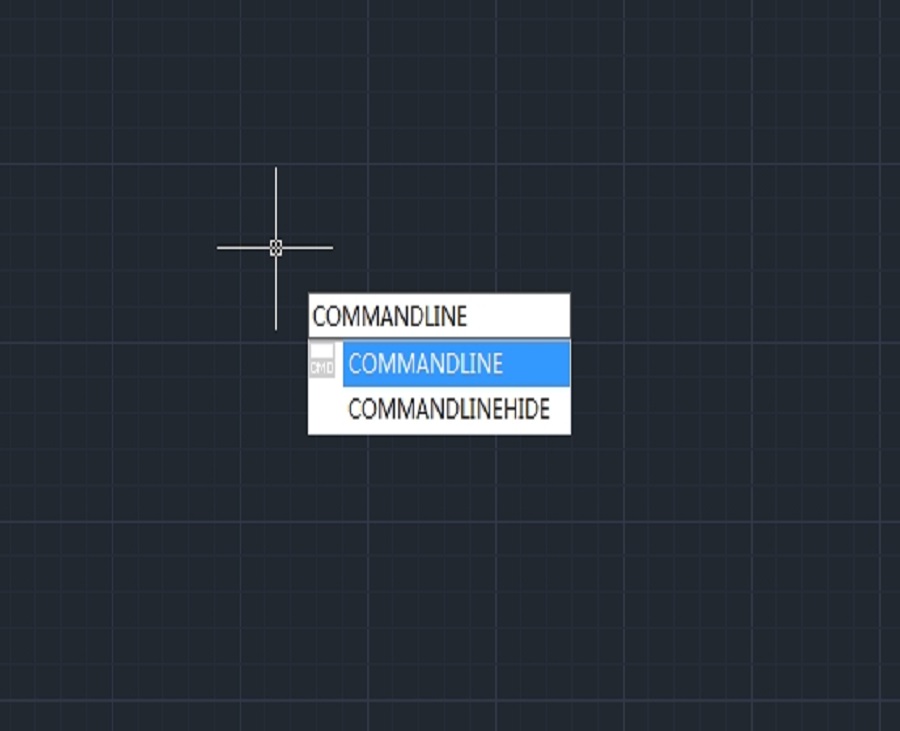
Use the command COMMANDLINE to toggle the command line visibility.

Use Keyboard Shortcuts
Press Ctrl + 9 to show or hide the command line.

Check Display Settings
Ensure that your display settings are correct. If you are using multiple monitors, please check if the command line is on a different screen.
Reopen your CAD program
Sometimes, simply closing and reopening the CAD program can resolve display issues.
Update or Repair the Software
If the command line is still missing, please consider updating or repairing the software to fix any potential bugs.
Discover more from Gstarsoft's Blog
Subscribe to get the latest posts sent to your email.