Step-by-Step Guide to Customize Command Shortcuts in CAD software
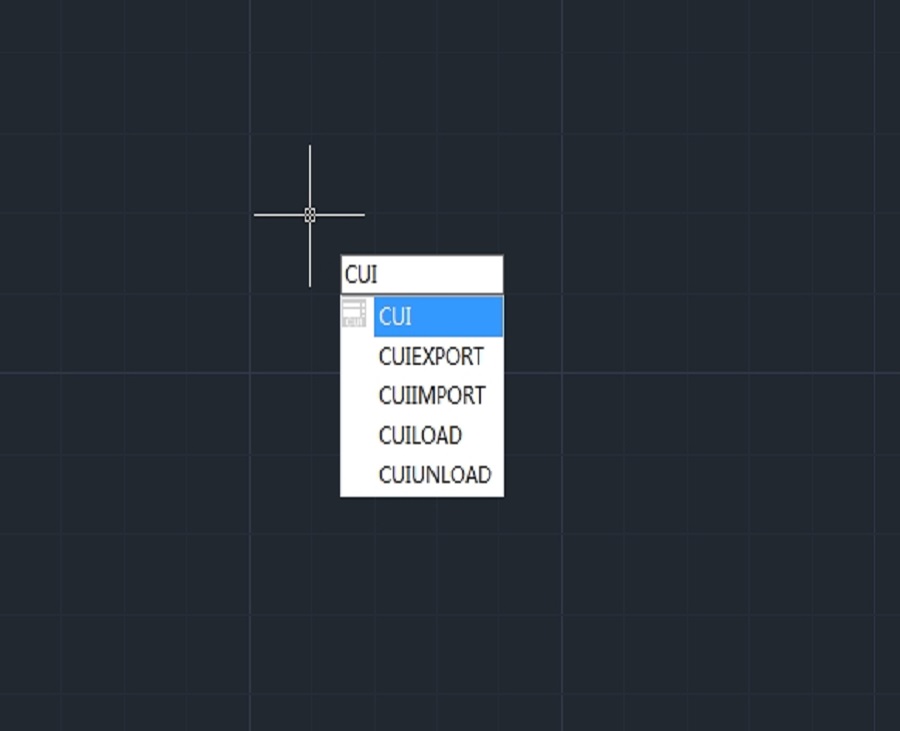
Launch the CAD application on your computer, and then access the Customize User Interface (CUI):
Type CUI in the command line and press Enter.

This opens the Customize User Interface dialog box, shown as below,

Navigate to the Command List:
In the CUI dialog, you will see a tree structure on the left side. Expand the “Customization” section.
Click on “Command List” to view all available commands, then select the command to customize by scrolling through the list of commands to find the one you want to assign a shortcut to, for example, Line command, circle command, etc.
Click on the command to highlight it.
Assign a Shortcut Key:
With the command selected, look for the “Properties” panel on the right side of the CUI dialog,
Find the “Shortcut Keys” section. Click in the “Shortcut Keys” field and press the desired key combination (e.g., Ctrl+L for LINE). If the shortcut is already in use, a warning will appear.
Add a New Shortcut:
If you want to add multiple shortcuts for the same command, click the “Add” button (usually represented by a plus sign).
Enter your new shortcut in the field provided.
Save Your Changes:
After assigning shortcuts, click OK to save your changes and close the CUI dialog.
Test the New Shortcut:
In your drawing area, try using the new shortcut to ensure it works correctly. For example, press Ctrl + L to initiate the LINE command.
Reset or Modify Shortcuts as Needed:
If you need to change or remove shortcuts later, simply repeat the above steps to access the CUI and modify your settings.
Additional Tips for customizing your command shortcuts
Avoid Conflicts: When assigning shortcuts, make sure they don’t conflict with existing shortcuts to avoid confusion.
Documentation: Keep a record of your custom shortcuts for easy reference.
Backup: If you heavily customize your interface, consider backing up your settings by exporting the CUI file.
Discover more from Gstarsoft's Blog
Subscribe to get the latest posts sent to your email.







