The function of color in CAD and how to change the color setting?

Although most industries plot CAD drawings in a single color, there are many drawings that have colors like red and green. How to set color and what should we pay attention to when we set colors in CAD

1.differentiate various types of objects using color

We can set a certain type of object using a certain color, in this way, we can easily differentiate various types of objects using different colors. For example, we can set layers using different colors, then put objects on different layers or set objects using different colors.

You can see how single-color drawing and multiple-color drawing display in the following picture,

2. How to control the color and line weight for plotting?

We can control the color, line weight and other properties for plotting through “Plot Style Manager”, the most commonly used plot style file is *.CTB, as shown in the following picture,

If the drawings are only black and white, the line weight would be no more than 7 and 1 to 7 would be enough.

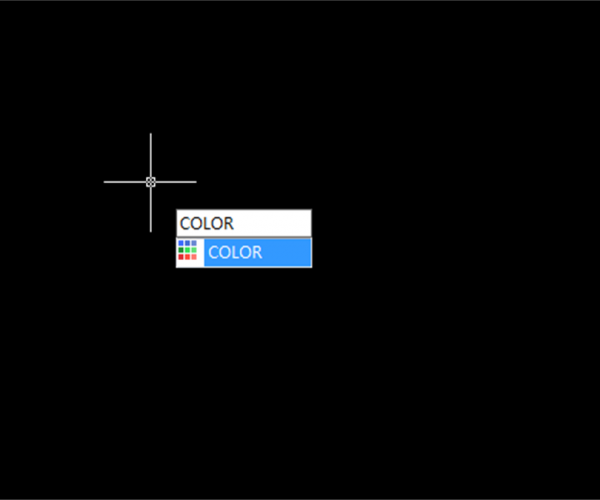
CAD is widely used in various industries and many drawings still need color printing, professional designers would make good use of colors in CAD, type “color” and the Select Color dialog box would pop up, as shown in the following picture,

Please note that if you only plot black and white drawings and want to use CTB to control the plot effect, then don’t use true color, because CTB plot style table doesn’t deal with true color objects.

Please leave a comment or send a message if you have any questions, we would like to hear your feedback.


Discover more from Gstarsoft's Blog

Subscribe to get the latest posts sent to your email.

GstarCAD Blog

www.gstarcad.net

Related Posts

Parametric Constraints in Dynamic Blocks: What’s New in GstarCAD 2027

In the field of architecture, construction, and mechanical design, changes are a constant. Whether driven by updated safety guidelines, client revisions, or evolving project requirements, designers are regularly asked to…

Top 5 Essential GstarCAD Shortcuts for Designers

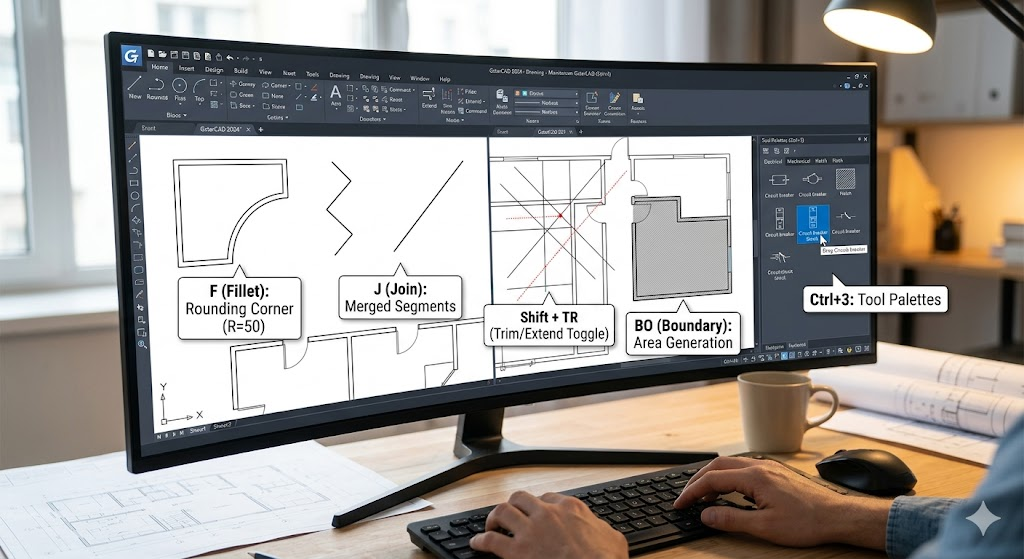
In the process of drawing and editing with GstarCAD, mastering basic functions and shortcuts can significantly reduce redundant operations while improving drawing precision and efficiency. The five features—Ctrl+3 (Tool Palettes),…

Leave a Reply

Don't Miss out

What Is CAD? A Beginner’s Guide to Learning CAD

  • September 1, 2026
What Is CAD? A Beginner’s Guide to Learning CAD

Interior Design Software: From Floor Plans to AI-Powered Visualization

  • August 25, 2026
Interior Design Software: From Floor Plans to AI-Powered Visualization

The Question Will Not Be “CAD or BIM,” but How They Work as One

  • August 21, 2026
The Question Will Not Be “CAD or BIM,” but How They Work as One

How GstarRender Turns Your Ideas into Stunning, Presentation-Ready Design Visuals

  • August 18, 2026
How GstarRender Turns Your Ideas into Stunning, Presentation-Ready Design Visuals

Do You Really Need Everything in AutoCAD? Why GstarCAD Is Enough for Many CAD Workflows

  • August 13, 2026
Do You Really Need Everything in AutoCAD? Why GstarCAD Is Enough for Many CAD Workflows

Best Free CAD Software Options in 2026

  • August 5, 2026
Best Free CAD Software Options in 2026

Discover more from Gstarsoft's Blog

Subscribe now to keep reading and get access to the full archive.

Continue reading

Discover more from Gstarsoft's Blog

Subscribe now to keep reading and get access to the full archive.

Continue reading