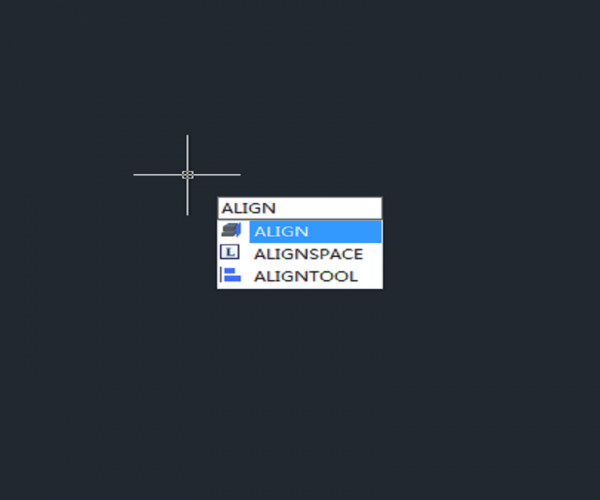
What is Align command and how to align two objects with Align command?
There is more than one way to align two objects, Align command is only one convenient way to do it.
The Align command can not only be used in 3D modeling but also in 2D drawing.

Extend Command for beginner
The Extend Command is one of the frequently used options to modify the drawing and can be used to extend object and make it connect with other objects in order to join with them.
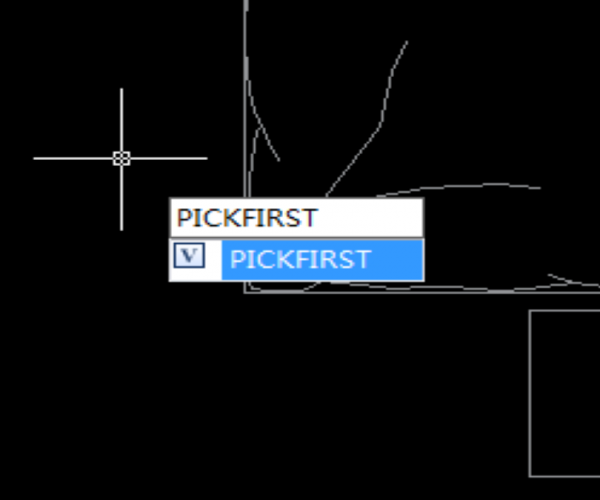
PICKFIRST (System Variable)
PICKFIRST is a system variable that’s used to control whether we can select objects before we start a command.

The Overkill Command
The OVERKILL command, which is used to delete duplicate objects, removes duplicate or overlapping lines, arcs, polylines, etc.
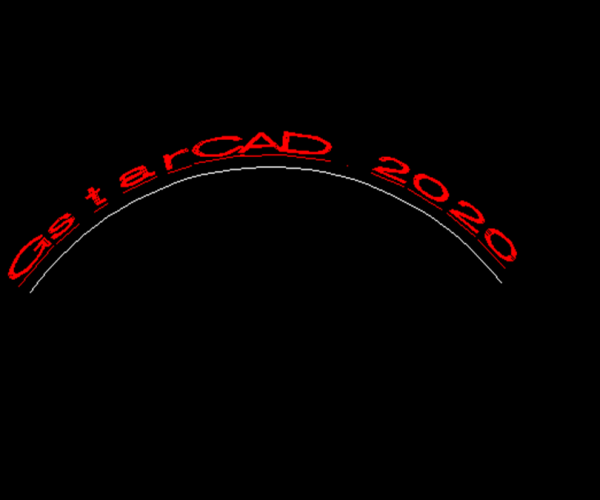
Can we create Arc-Aligned text with GstarCAD?
With GstarCAD, we can not only create single line and multiline text object, but also arc-aligned text with ARCTEXT Command.
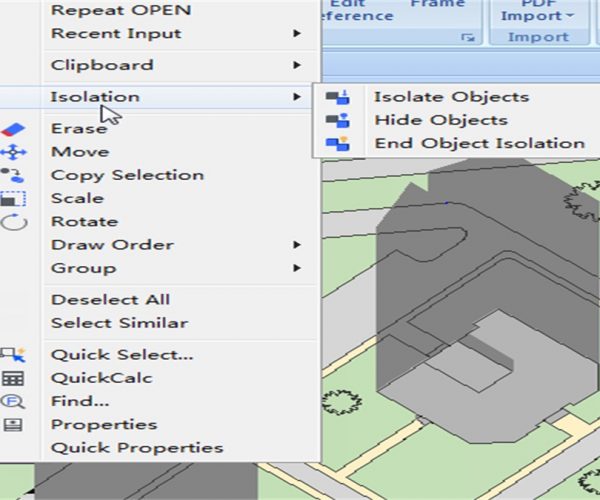
How to hide and isolate selected objects?
Hiding an object is to make it invisible, and isolating an object is similar to layer isolation, which is to temporarily hide all objects except the selected ones.
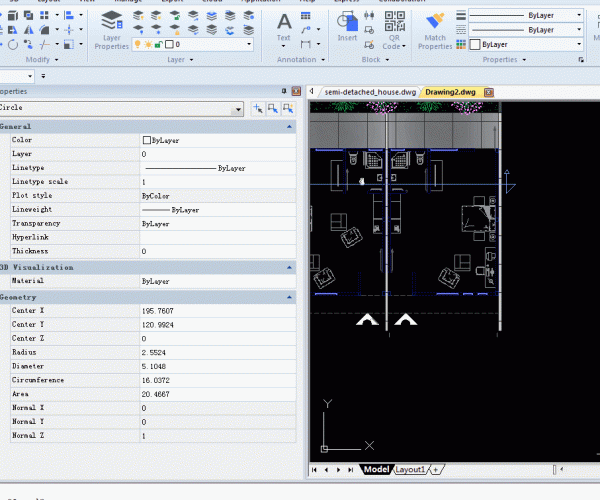
How to use Region command
The REGION command is used to convert closed objects such as polylines, polygons, circles, ellipses, closed splines, and donuts into two dimensional regions. After we create a region, we can then modify it using various three dimensional tools.

How to use extrude command to create 3D objects
The EXTRUDE command is used to create 3D solid or surface by extruding the dimension of selected object. For example, a circle can become a cylinder, a line can become a 3D plane, and a rectangle can become a box.
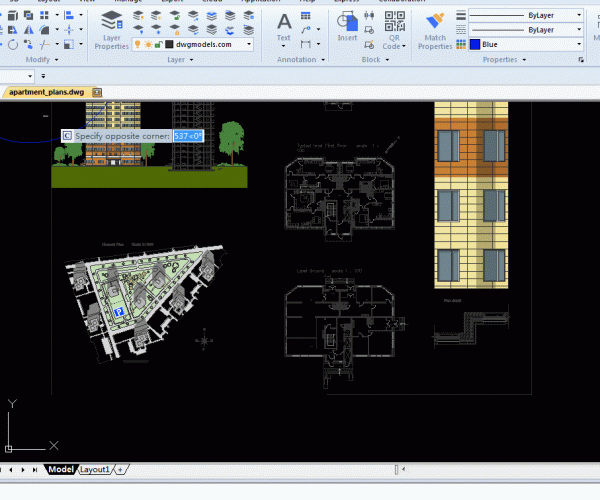
GstarCAD tutorial for beginners: ways to select objects
Imagine that we have selected some objects and are ready to edit them but cancel the selection by mistake. Can we get the selection back? Just execute the CHANGE command, and when we are prompted to select object, type P and then press Enter, we will get the canceled selection back.
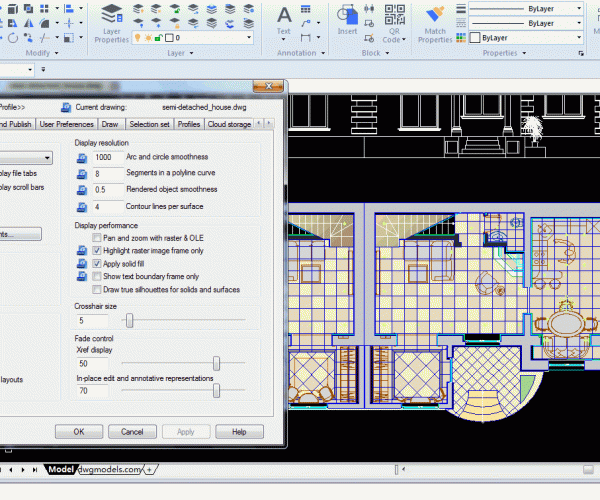
How to change the background color in CAD ?
By default the background color in drawing area is black, but with only a few clicks, we can change it to your preferred color.







)


