The DRAGMODE Command of GstarCAD

The DRAGMODE Command is used to control the way dragged objects are displayed.

Command Access:

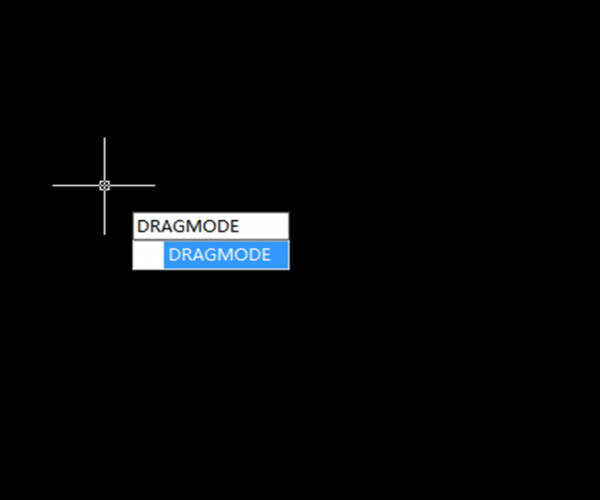
Enter “DRAGMODE”, then press Enter key to enter new value, as shown in the following picture,

There are three prompts:

On: allows dragging objects, but users need to input “drag” in proper position when drawing or editing command.

Off: Forbids to drag objects, even drag requirement embedded in menu.

Auto: Users could drag objects for every command that supports it. There is no need to input “drag” each time.

By default, if we draw circle using the Circle command, we can see the preview of the circle as we move the cursor, as shown in the following picture,

If turn off the DRAGMODE, there would be no preview of the circle as we move the cursor, as shown in the following picture,

Does this mean that if we turn on the DRAGMODE, we would be able to see the preview, try it yourself and then you know the answer is big no.

Then how to resume the preview? Set the DRAGMODE to Auto to resume and the preview is back, as shown in the following picture,

Why this happens?

By default, the DRAGMODE is set to Auto and every command that supports dragging displays dragging automatically.


Discover more from Gstarsoft's Blog

Subscribe to get the latest posts sent to your email.

GstarCAD Blog

www.gstarcad.net

Related Posts

GstarCAD Deep Dive: What Really Happens Inside a CAD Block?

Blocks are everywhere in CAD. A door symbol. A bolt. A valve. A title block. A machine component. At first glance, a block may look like several drawing objects simply…

GstarCAD Deep Dive: How Multiple Top-Level Windows Change Multi-Drawing Workflows

CAD work rarely happens in just one drawing. An engineer may keep a current design open while referring to an earlier revision. A mechanical designer may copy standard details from…

Leave a Reply

Don't Miss out

GstarCAD Deep Dive: What Really Happens Inside a CAD Block?

  • September 29, 2026
GstarCAD Deep Dive: What Really Happens Inside a CAD Block?

GstarCAD Deep Dive: How Multiple Top-Level Windows Change Multi-Drawing Workflows

  • September 23, 2026
GstarCAD Deep Dive: How Multiple Top-Level Windows Change Multi-Drawing Workflows

Gstarsoft and AppliCAD Launch GstarSolutions Thailand, Deepening Their Partnership in the Thai Market

  • September 21, 2026
Gstarsoft and AppliCAD Launch GstarSolutions Thailand, Deepening Their Partnership in the Thai Market

Modernizing Without Disruption: What European SMEs Can Learn from SNIE’s Experience

  • September 18, 2026
Modernizing Without Disruption: What European SMEs Can Learn from SNIE’s Experience

GstarCAD Mechanical 2027: Smarter Workflows, Better Compatibility

  • September 15, 2026
GstarCAD Mechanical 2027: Smarter Workflows, Better Compatibility

AI Rendering Workflow: How GstarRender Improves Design Visualization

  • September 8, 2026
AI Rendering Workflow: How GstarRender Improves Design Visualization

Discover more from Gstarsoft's Blog

Subscribe now to keep reading and get access to the full archive.

Continue reading

Discover more from Gstarsoft's Blog

Subscribe now to keep reading and get access to the full archive.

Continue reading