Workspace
The new Workspace command allows to create, modify and save current workspaces. You can customize ribbon or classic workspace to suit interface environment needs much easier.

Right-Click + Drag Method
The right-click+drag method allows users to move, copy or paste selected objects as block by right-clicking and dragging the objects while holding the right button down.
Hidden Message Settings
Within the option dialog box, under “Users Preferences” tab, you can find the new “Hidden Message Settings” option that controls the display of previously hidden messages. After a message has…
Selection Cycling
With the new Selection Cycling system variable you can quickly select overlapped or coincident objects in current drawing as well as set selection cycling options.
Can my block be dynamic?
In some design, particularly architectural design, some of the blocks(furniture, television .etc) need to move or rotate the position freely in order to get a better preview. Actually, it’s not difficult so much.…
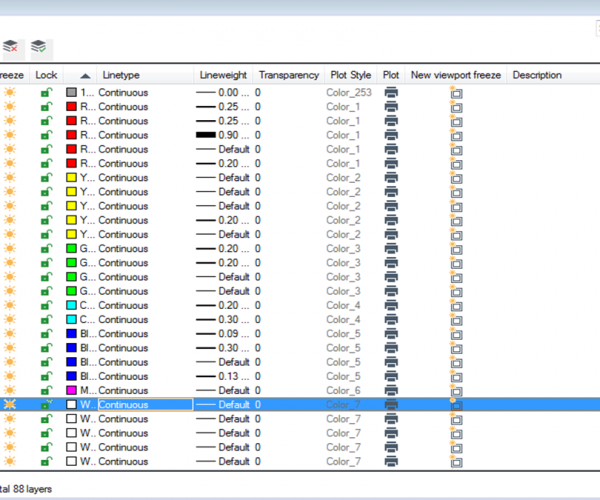
Layer 0, ByLayer and ByBlock? Confused? Explore more with us!
Every time you create a new drawing, you will see a default layer: Layer 0. You can’t delete it.
Learn about startup system variable
Did you notice there is a start up dialog box pops up when you first open GstarCAD software. It will make them aware to select a template before actually start…
List system Variable
GstarCAD provides plenty of system variables, To check the status of certain system variables, you can use the SETVAR command.
Ignoring object snap elevations
A frequent problem in objects snaps is the inheritance of the Z value when snapping to a point. GstarCAD addresses this problem with OSNAPZ system variable. If set to 0,…
Using file dialog at prompts
Sometimes settings (such as FILEDIA) can cause certain routines to ask for a file name at the command prompt. In these cases, you can enter the tilde ~ character followed by…







