Laytrans Command

Laytrans command is used to change the current layer to specified layer standard.

If we receive drawings from our colleagues or business partners and we need to make changes to the drawings to make them apply to the standards of your organization, then you surely need LAYTRANS command. With this useful command, you don’t need to modify the drawings one by one.

How to access the Laytrans Command

When using 2D Drafting workspace, find

Manager > CAD Standards > Layer Translator(LAYTRANS), as shown in the following picture,

When using GstarCAD Classic workspace, find

Format> Layer tools > Layer Translator, as shown in the following picture,

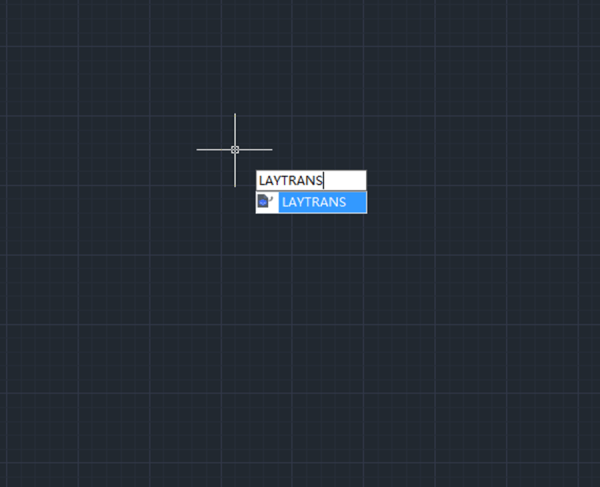
Or we can enter “LAYTRANS”, as shown in the following picture,

The Layer Translator dialogue box

After executing the Laytrans command, the Layer Translator dialog box will pop up, as shown in the following picture,

Join our discord community!

Connect with CAD experts, share technical insights, and get real-time support from the global community.

Join Discord Server

Share & Get a $10 Amazon Gift Card

Share your honest GstarCAD feedback and get a chance to win a $10 Amazon gift card.

Write a Review

Discover more from Gstarsoft's Blog

Subscribe to get the latest posts sent to your email.

GstarCAD Blog

www.gstarcad.net

Related Posts

Design Intelligence for an Integrated Future: Gstarsoft Strengthens Its Open CAD+BIM+AI Ecosystem

Xi’an, China— June 17, 2026 — Gstarsoft, the global provider of industrial software and digital design solutions, today unveiled its latest design portfolio spanning CAD, BIM, cloud solutions and AI…

Top 5 Essential GstarCAD Shortcuts for Designers

In the process of drawing and editing with GstarCAD, mastering basic functions and shortcuts can significantly reduce redundant operations while improving drawing precision and efficiency. The five features—Ctrl+3 (Tool Palettes),…

One thought on “Laytrans Command

Leave a Reply

Don't Miss out

Design Intelligence for an Integrated Future: Gstarsoft Strengthens Its Open CAD+BIM+AI Ecosystem

  • June 19, 2026
Design Intelligence for an Integrated Future: Gstarsoft Strengthens Its Open CAD+BIM+AI Ecosystem

GstarCAD 2027: Unleashing Performance and Innovation for Modern Engineering

  • June 11, 2026
GstarCAD 2027: Unleashing Performance and Innovation for Modern Engineering

The Intersection of Art and Efficiency: A49’s Digital Evolution with GstarCAD

  • June 4, 2026
The Intersection of Art and Efficiency: A49’s Digital Evolution with GstarCAD

Top 5 Essential GstarCAD Shortcuts for Designers

  • May 29, 2026
Top 5 Essential GstarCAD Shortcuts for Designers

Common Methods for Inserting Images in GstarCAD

  • May 22, 2026
Common Methods for Inserting Images in GstarCAD

Building the Future of Steel: How Tarkon Optimizes Structural Design with GstarCAD

  • May 7, 2026
Building the Future of Steel: How Tarkon Optimizes Structural Design with GstarCAD

Discover more from Gstarsoft's Blog

Subscribe now to keep reading and get access to the full archive.

Continue reading

Discover more from Gstarsoft's Blog

Subscribe now to keep reading and get access to the full archive.

Continue reading

