How to restore default settings in CAD

You may have changed a CAD setting somehow and now you want to restore the default settings. What to do?

How to reset settings to default

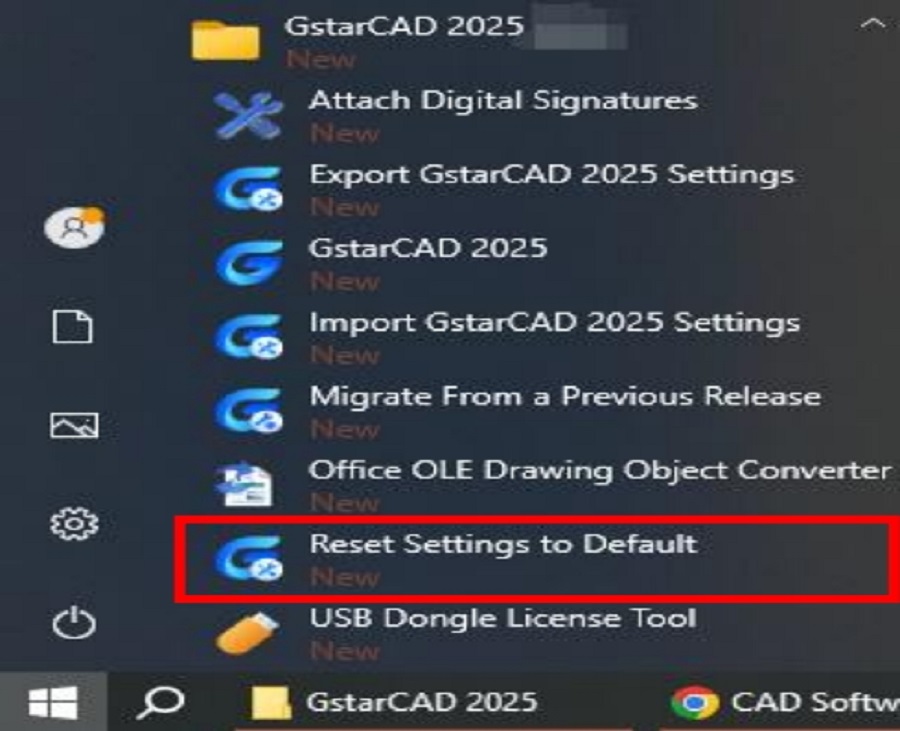
Click “Reset Settings to Default”, positioned alongside GstarCAD 2025 in the list of all programs accessed from the “Windows Start menu, shown in the following picture:

Users can only reset the settings to default when the software is closed.

After running the “Reset Settings to Default”, the Reset Settings dialog box will pop up, shown as below,

You can select “Back up and reset custom settings” option to create a backup file that contains your customized files before resetting the program to default.

Alternatively, you can select “Reset custom settings” option to reset the program without generating backup files of your custom settings.

Please note:

  1. Resetting the custom settings will erase the registry information of GstarCAD software and delete the Local and Roaming folders. When you start GstarCAD after resetting it, new Local and Roaming folders will be generated.
  2. Backing up and resetting the custom settings will erase the registry information of GstarCAD program and back up the Local and Roaming folders under C:\Users\username\AppData, and then delete the Local and Roaming folders all together. When you start GstarCAD again, new Local and Roaming folders will be generated.


Discover more from Gstarsoft's Blog

Subscribe to get the latest posts sent to your email.

GstarCAD Blog

www.gstarcad.net

Related Posts

Old Factory Renovation with AI Rendering: Reimagine Industrial Buildings with GstarRender

Old factories often have an architectural character that is difficult to recreate in new buildings. Brick facades, large windows, exposed structures, high ceilings, and simple industrial forms can all become…

GstarCAD Deep Dive: What Really Happens Inside a CAD Block?

Blocks are everywhere in CAD. A door symbol. A bolt. A valve. A title block. A machine component. At first glance, a block may look like several drawing objects simply…

Leave a Reply

Don't Miss out

Old Factory Renovation with AI Rendering: Reimagine Industrial Buildings with GstarRender

  • October 15, 2026
Old Factory Renovation with AI Rendering: Reimagine Industrial Buildings with GstarRender

GstarCAD Deep Dive: What Really Happens Inside a CAD Block?

  • September 29, 2026
GstarCAD Deep Dive: What Really Happens Inside a CAD Block?

GstarCAD Deep Dive: How Multiple Top-Level Windows Change Multi-Drawing Workflows

  • September 23, 2026
GstarCAD Deep Dive: How Multiple Top-Level Windows Change Multi-Drawing Workflows

Gstarsoft and AppliCAD Launch GstarSolutions Thailand, Deepening Their Partnership in the Thai Market

  • September 21, 2026
Gstarsoft and AppliCAD Launch GstarSolutions Thailand, Deepening Their Partnership in the Thai Market

Modernizing Without Disruption: What European SMEs Can Learn from SNIE’s Experience

  • September 18, 2026
Modernizing Without Disruption: What European SMEs Can Learn from SNIE’s Experience

GstarCAD Mechanical 2027: Smarter Workflows, Better Compatibility

  • September 15, 2026
GstarCAD Mechanical 2027: Smarter Workflows, Better Compatibility

Discover more from Gstarsoft's Blog

Subscribe now to keep reading and get access to the full archive.

Continue reading

Discover more from Gstarsoft's Blog

Subscribe now to keep reading and get access to the full archive.

Continue reading