How to create 2D isometric drawing

If you work in the plant industry, then you might need to draw isometric drawings.

If you use GstarCAD, you may wish you can do it easily. It’s not a 3D drawing, but 2D drawing by simply change your drawing orientation. You can do it by using snap, then change its style to isometric.

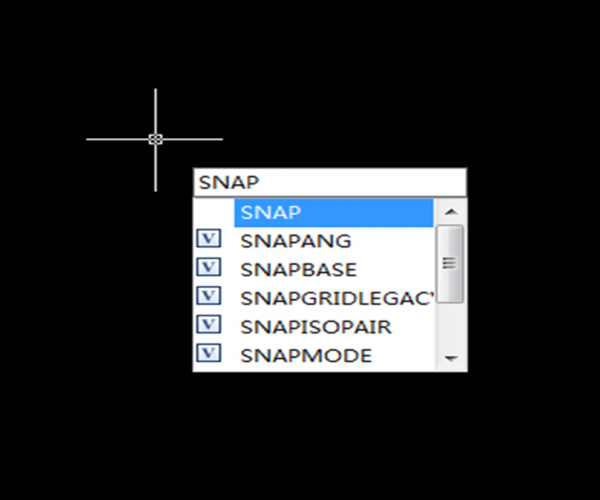
Command: SNAP
Specify snap spacing or [ON/OFF/Aspect/Style/Type] <10.0000>: S
Enter snap grid style [Standard/Isometric] <S>: I
Specify vertical spacing <10.0000>: 10

Also, you can change your plane by typing ISOPLANE [enter] then select left, top, right. Alternatively, you can use the SNAPSTYL command, changing the variable value to 1. You can change your plane by typing ISOPLANE, but it can be done faster by pressing “F5″ key. To go back to the default, use the SNAPSTYL command again and change the variable value to 0.


Discover more from Gstarsoft's Blog

Subscribe to get the latest posts sent to your email.

  • GstarCAD Blog

    www.gstarcad.net

    Related Posts

    The Ultimate Guide to GstarCAD Mechanical 2026: The Future of Manufacturing Design

    GstarCAD Mechanical 2026 drafting/design software, covers all fields of mechanical design.

    How to Calculate CAD Area Quickly?

    As a CAD designer, are you frustrated by the cumbersome and error-prone manual CAD area calculation? GstarCAD offers multiple efficient CAD area calculation methods!

    Leave a Reply

    Don't Miss out

    Building the Future of Steel: How Tarkon Optimizes Structural Design with GstarCAD

    • May 7, 2026
    Building the Future of Steel: How Tarkon Optimizes Structural Design with GstarCAD

    GstarCAD 2026: Is It Time to Look Beyond the AutoCAD Legacy?

    • April 21, 2026
    GstarCAD 2026: Is It Time to Look Beyond the AutoCAD Legacy?

    Gstarsoft Showcases Integrated CAD + BIM Solutions at BIM World Paris 2026

    • April 3, 2026
    Gstarsoft Showcases Integrated CAD + BIM Solutions at BIM World Paris 2026

    Boost CAD Productivity with GstarCAD 2026’s XTP Import Feature

    • March 24, 2026
    Boost CAD Productivity with GstarCAD 2026’s XTP Import Feature

    Case study: How TopenTech Optimized Equipment Diagnostics and Field Productivity with GstarCAD

    • March 9, 2026
    Case study: How TopenTech Optimized Equipment Diagnostics and Field Productivity with GstarCAD

    The Ultimate Guide to GstarCAD Mechanical 2026: The Future of Manufacturing Design

    • January 30, 2026
    The Ultimate Guide to GstarCAD Mechanical 2026: The Future of Manufacturing Design

    Discover more from Gstarsoft's Blog

    Subscribe now to keep reading and get access to the full archive.

    Continue reading

    Discover more from Gstarsoft's Blog

    Subscribe now to keep reading and get access to the full archive.

    Continue reading

