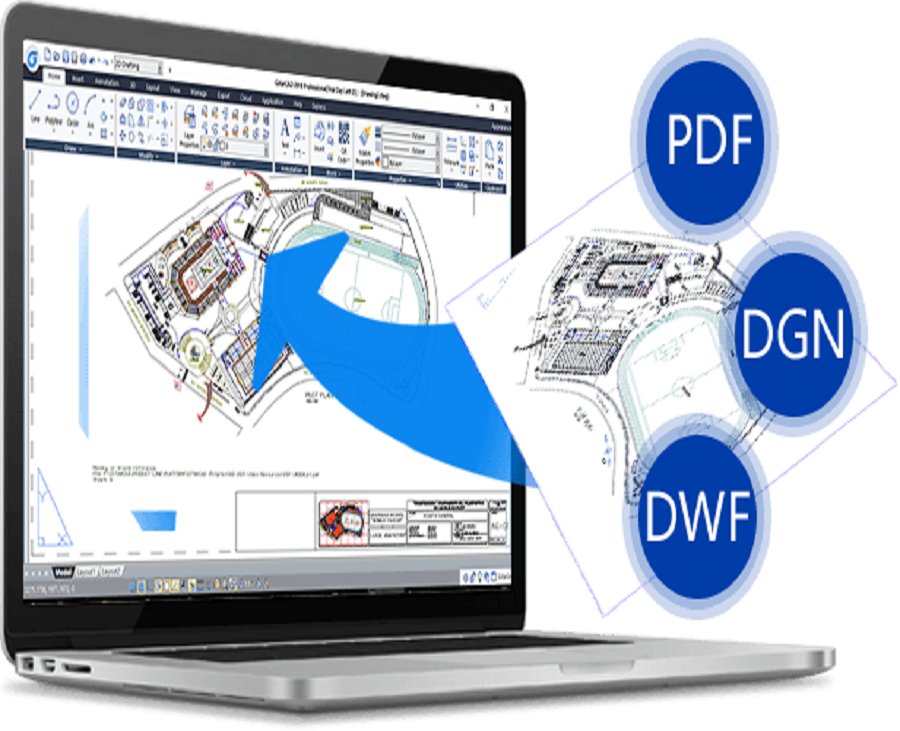
CAD files are digital files used to store 2D or 3D CAD design data.
What are 2D CAD files?
2D CAD files are those CAD files that contain 2D CAD data and objects that are created by 2D CAD drawing software while 3D CAD files are 3D models created using 3D CAD software.

What are 2D CAD file formats?
CAD file formats are CAD file types with different file extensions. Just like common image file formats include different file types with different extensions such as JPEG, PNG, GIF, etc, major CAD file formats include DWG, DXF, DGN, etc.
GstarCAD is compatible with major CAD applications and file formats and supports the import of dwg, IFC, STEP, and IGES files, etc. as well as DXF and PDF files.
How to make a 3D CAD file 2d/How to convert a 3D CAD file to 2D
Users can convert a 3D design to a 2D CAD drawing by using the FLATSHOT command. The Flatshot command allows users to create a 2D representation of all 3D objects based on the current view or plane. Alternatively, you can flatten 3D CAD drawings to 2D with a different method.

To access Flatshot command, find 3D tab > Section panel > Flatshot command, shown as below,

or you can enter FLATSHOT and press Enter key to execute it, shown as below,

After executing the FLATSHOT command, FlatShot dialog box will pop up, shown as below,

Free 2D CAD software for dwg files
GstarCAD is general-purpose 2D CAD software that is not only easy to use but simple and efficient for all users to create, modify, view, and print 2D CAD drawings and plans accurately.
GstarCAD supports the latest DWG/DXF TM files and more file formats. Import and export of files keep the interoperability and connectivity across the project team involved. For example, GstarCAD can import WMF, SAT, and 3DS file formats and export to file formats of DWF, DWFx, WMF, SAT, STL, EPS, DXX, and BMP. What’s more, GstarCAD has implemented full DGN file support and related commands such as DGN-import, DGN-attach, DGN-adjust, etc.
Now, you can download GstarCAD for a free 30-day trial and explore more possibilities brought about by GstarCAD.

Discover more from Gstarsoft's Blog
Subscribe to get the latest posts sent to your email.







