To change the text height of a dimension in GstarCAD, follow these steps:
1.Select the dimension
Simply click on the dimension object you want to modify.
2. Open the Properties panel
Right-click on the selected dimension and choose “Properties” or press CTRL +1 to open the Properties panle, shown as below,

3. Change the text heihgt
In the Properties panle, find the “Text Height” option and enter your desired height value

4. Confirm the changes and check the result
The text height should update automatically. Inspect the dimension to ensure the text height has been changed as expected.
How to change the text height of all dimensions in a drawing
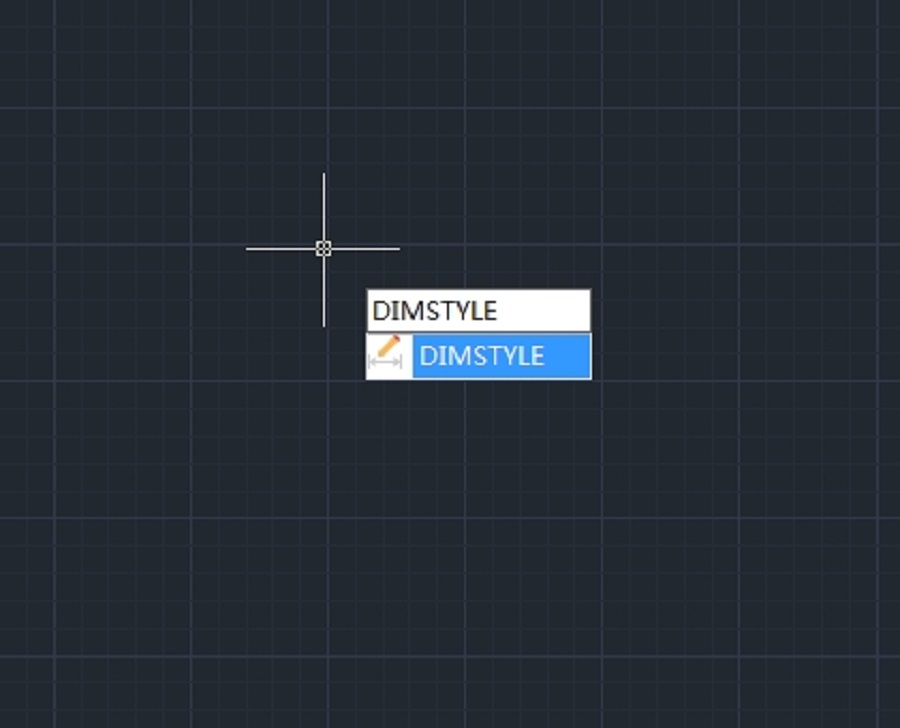
- Type DIMSTYLE on the command line, or click Dimension Styles from Dimension tab, shown as below,

2. When the Dimension Style Manager is open, select the dimension style and click Modify.

3. On the Text tab, set the desired text height, shown as below,

Unable to modify text height in dimension or attribute style?
If the text height box is greyed out as in the picture above, simply follow these steps to unlock:
- Click the three-dot menu next to the Text style,

2. Then set the height to “0”, click Apply button to apply the changes.

3. After closing the Text Style dialog box, the text height will be unlocked and editable. Then click OK to save the changes.








The text height is locked as in the picture above.
Hello, to unlock the text height:
1. Click the three-dot menu next to the Text style
2. Set the height to ‘0’ in the popped-up dialog box,
3. Click ‘Apply’, then close the dialog box.
The text height will now be editable (no longer greyed out).
We’ve updated the blog post with the details you requested!
Thank you for being a valued user of GstarCAD. Your feedback helps us improve!