How to change the text height of a dimension in CAD

To change the text height of a dimension in GstarCAD, follow these steps:

1.Select the dimension

Simply click on the dimension object you want to modify.

2. Open the Properties panel

Right-click on the selected dimension and choose “Properties” or press CTRL +1 to open the Properties panle, shown as below,

3. Change the text heihgt

In the Properties panle, find the “Text Height” option and enter your desired height value

4. Confirm the changes and check the result

The text height should update automatically. Inspect the dimension to ensure the text height has been changed as expected.

How to change the text height of all dimensions in a drawing

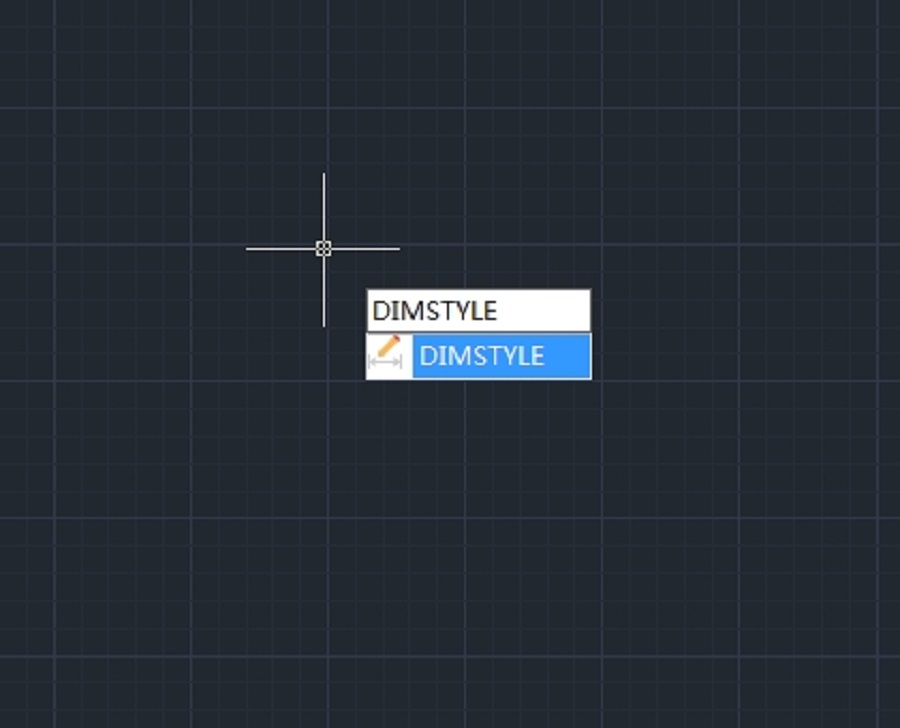
  1. Type DIMSTYLE on the command line, or click Dimension Styles from Dimension tab, shown as below,

2. When the Dimension Style Manager is open, select the dimension style and click Modify.

3. On the Text tab, set the desired text height, shown as below,

Unable to modify text height in dimension or attribute style?

If the text height box is greyed out as in the picture above, simply follow these steps to unlock:

  1. Click the three-dot menu next to the Text style,

2. Then set the height to “0”, click Apply button to apply the changes.

3. After closing the Text Style dialog box, the text height will be unlocked and editable. Then click OK to save the changes.


Discover more from Gstarsoft's Blog

Subscribe to get the latest posts sent to your email.

GstarCAD Blog

www.gstarcad.net

Related Posts

Design Intelligence for an Integrated Future: Gstarsoft Strengthens Its Open CAD+BIM+AI Ecosystem

Xi’an, China— June 17, 2026 — Gstarsoft, the global provider of industrial software and digital design solutions, today unveiled its latest design portfolio spanning CAD, BIM, cloud solutions and AI…

GstarCAD 2026: Is It Time to Look Beyond the AutoCAD Legacy?

1. Introduction: The Current State of Design Software For decades, the architectural and engineering landscape has been dominated by a single legacy standard. While AutoCAD established the bedrock of digital…

One thought on “How to change the text height of a dimension in CAD

    1. Hello, to unlock the text height:
      1. Click the three-dot menu next to the Text style
      2. Set the height to ‘0’ in the popped-up dialog box,
      3. Click ‘Apply’, then close the dialog box.

      The text height will now be editable (no longer greyed out).

      We’ve updated the blog post with the details you requested!

      Thank you for being a valued user of GstarCAD. Your feedback helps us improve!

Leave a Reply

Don't Miss out

Design Intelligence for an Integrated Future: Gstarsoft Strengthens Its Open CAD+BIM+AI Ecosystem

  • June 19, 2026
Design Intelligence for an Integrated Future: Gstarsoft Strengthens Its Open CAD+BIM+AI Ecosystem

GstarCAD 2027: Unleashing Performance and Innovation for Modern Engineering

  • June 11, 2026
GstarCAD 2027: Unleashing Performance and Innovation for Modern Engineering

The Intersection of Art and Efficiency: A49’s Digital Evolution with GstarCAD

  • June 4, 2026
The Intersection of Art and Efficiency: A49’s Digital Evolution with GstarCAD

Top 5 Essential GstarCAD Shortcuts for Designers

  • May 29, 2026
Top 5 Essential GstarCAD Shortcuts for Designers

Common Methods for Inserting Images in GstarCAD

  • May 22, 2026
Common Methods for Inserting Images in GstarCAD

Building the Future of Steel: How Tarkon Optimizes Structural Design with GstarCAD

  • May 7, 2026
Building the Future of Steel: How Tarkon Optimizes Structural Design with GstarCAD

Discover more from Gstarsoft's Blog

Subscribe now to keep reading and get access to the full archive.

Continue reading

Discover more from Gstarsoft's Blog

Subscribe now to keep reading and get access to the full archive.

Continue reading

