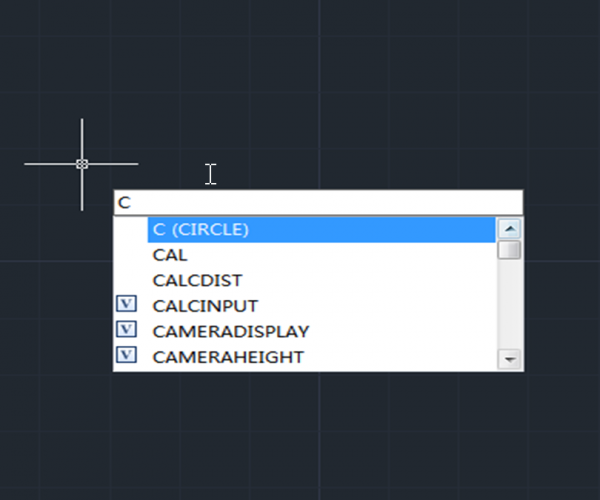
There are some basic ways to execute a command in CAD system, just like in many other applications in Windows: drop-down menu, toolbar button, Ribbon and shortcut keys such as CTRL + S for Save, CTRL + C for Copy, etc.
What is unique to CAD software is that it support Command Name, which is actually an efficient way to execute a command. Entering the name for the command to be executed, and then press Enter key or Space key to execute it, we can also set up some parameters for the command. For example, we can enter “Line” when we want to draw a line, but most commonly we can just use shortcut “L” instead of the full command name to improve our efficiency.
Here are some other ways to be noted in order to improve efficiency
Right-click menu: The right-click menu is quite convenient for those are used to working with a mouse for the right-click menu displays different options according to different objects you selected. We also have access to the recent input and recent executed commands, as shown in the following picture,

We can use the right-click menu in some dialog box to set up some options, for example in the dialog boxes of Layer Properties Manager

Enter key: Press Enter key will repeat the last command we use, for example, after I draw a circle, we can just press Enter key or Space key to draw another circle without directly repeat the “Circle” command.
Double-click: Double-clicking certain objects will execute some commands, for example, if we double click some common objects like circle, line, there will be Properties Panel popping up; If we double click the single line text, we’ll be able to edit it; If we double-click multiline text, the text formatting will be popping up, just to name a few.
Up and Down arrow keys
If we want to execute a certain command recently used and it’s inconvenient to enter it again, we can use the Up and Down arrow keys to find previously executed commands, and then execute it again by pressing Enter key or Space key, as shown in the following picture,







