How to use extrude command to create 3D objects

The EXTRUDE command is used to create 3D solid or surface by extruding the dimension of a selected object.

For example, a circle can become a cylinder, a line can become a 3D plane, and a rectangle can become a box.

How to access EXTRUDE command?

  • When using 2D Drafting workspace, find 3D tab> Modelling panel > Extrude, as shown in the following picture,
  • When using GstarCAD Classic workspace, find Draw > Modeling > Extrude, shown as below,
  • Or just enter command EXTRUDE, shown as below,

A step-by-step tutorial to turn a circle into a cylinder

  1. Create a random circle in 2 dimension, as shown in the following picture,

2. When it comes to creating 3D objects, we’ll need the Z-axis, so enter 3DO and press Enter key,
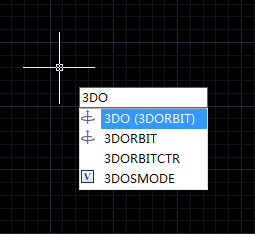
3. Now we can see this circle in 3 dimensional perspective, as shown in the following picture,

4. Execute the EXTRUDE command, and select objects to extrude, shown as below,

5. Select the circle, and specify height of extrusion, as shown in the following picture,

Check the video for more info about Extrude in 3D Modeling:

GstarCAD Blog

www.gstarcad.net

Related Posts

The Ultimate Guide to GstarCAD Mechanical 2026: The Future of Manufacturing Design

GstarCAD Mechanical 2026 drafting/design software, covers all fields of mechanical design.

GstarCAD 2026 DWG Comparison: Boost Design Efficiency

GstarCAD 2026 has introduced a new DWG Compare tool designed to eliminate the manual effort of identifying revisions between drawing versions. By using the COMPARE command, the software automatically highlights additions in red, deletions in green, and identical elements in gray using revision clouds. This feature streamlines the proofreading process for architects and engineers, allowing for instant visual verification of changes across any DWG file.

One thought on “How to use extrude command to create 3D objects

  1. I can’t use extrude command in GStarCad 2020 standard version. “**That command not allowed in current version**” appeared in command bar when i tried to use extrude command prompt. Plus, there is no extrude icon in 3D>Modelling tab

    1. Hi Mohamad,

      Thanks for visiting our GstarCAD blog. GstarCAD 2020 Standard version supports only the basic 3D commands, so you may not be able to use some 3D commands including Extrude command.
      But you can use it and many other 3D commands in GstarCAD 2020 Professional version and version above. You can find the 3D > Modeling tab in GstarCAD 2020 Professional as shown in this screenshot https://blog.gstarcad.net/wp-content/uploads/2019/10/extrude.png
      Plus, we have released GstarCAD 2021 which supports more 3D commands such as polysolid, convtomesh, convtosolid, convtosurface, convtonurbs etc, welcome download the free trial https://www.gstarcad.net/cad2021

Leave a Reply to Mohamad Aznan Bin AliudinCancel reply

Don't Miss out

Boost CAD Productivity with GstarCAD 2026’s XTP Import Feature

  • March 24, 2026
Boost CAD Productivity with GstarCAD 2026’s XTP Import Feature

Case study: How TopenTech Optimized Equipment Diagnostics and Field Productivity with GstarCAD

  • March 9, 2026
Case study: How TopenTech Optimized Equipment Diagnostics and Field Productivity with GstarCAD

The Ultimate Guide to GstarCAD Mechanical 2026: The Future of Manufacturing Design

  • January 30, 2026
The Ultimate Guide to GstarCAD Mechanical 2026: The Future of Manufacturing Design

GstarCAD 2026 DWG Comparison: Boost Design Efficiency

  • January 16, 2026
GstarCAD 2026 DWG Comparison: Boost Design Efficiency

How to Calculate CAD Area Quickly?

  • December 25, 2025
How to Calculate CAD Area Quickly?

Top 10 best floorplan design software in 2026 (2D&3D)

  • December 11, 2025
Top 10 best floorplan design software in 2026 (2D&3D)

Discover more from Gstarsoft's Blog

Subscribe now to keep reading and get access to the full archive.

Continue reading

