
The EXTRUDE command is used to create 3D solid or surface by extruding the dimension of a selected object.
For example, a circle can become a cylinder, a line can become a 3D plane, and a rectangle can become a box.
How to access EXTRUDE command?
- When using 2D Drafting workspace, find 3D tab> Modelling panel > Extrude, as shown in the following picture,

- When using GstarCAD Classic workspace, find Draw > Modeling > Extrude, shown as below,

- Or just enter command EXTRUDE, shown as below,

A step-by-step tutorial to turn a circle into a cylinder
- Create a random circle in 2 dimension, as shown in the following picture,

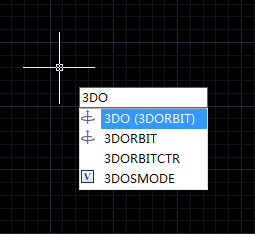
2. When it comes to creating 3D objects, we’ll need the Z-axis, so enter 3DO and press Enter key,
3. Now we can see this circle in 3 dimensional perspective, as shown in the following picture,

4. Execute the EXTRUDE command, and select objects to extrude, shown as below,

5. Select the circle, and specify height of extrusion, as shown in the following picture,

Check the video for more info about Extrude in 3D Modeling:






I can’t use extrude command in GStarCad 2020 standard version. “**That command not allowed in current version**” appeared in command bar when i tried to use extrude command prompt. Plus, there is no extrude icon in 3D>Modelling tab
Hi Mohamad,
Thanks for visiting our GstarCAD blog. GstarCAD 2020 Standard version supports only the basic 3D commands, so you may not be able to use some 3D commands including Extrude command.
But you can use it and many other 3D commands in GstarCAD 2020 Professional version and version above. You can find the 3D > Modeling tab in GstarCAD 2020 Professional as shown in this screenshot https://blog.gstarcad.net/wp-content/uploads/2019/10/extrude.png
Plus, we have released GstarCAD 2021 which supports more 3D commands such as polysolid, convtomesh, convtosolid, convtosurface, convtonurbs etc, welcome download the free trial https://www.gstarcad.net/cad2021