Handling 3D objects is essential in modern design. GstarCAD provides various tools to manage 3D models. This article will outline key methods for working with 3D objects in GstarCAD, helping users leverage its capabilities for more complex designs.
How to add simple shading to 3D objects in GstarCAD
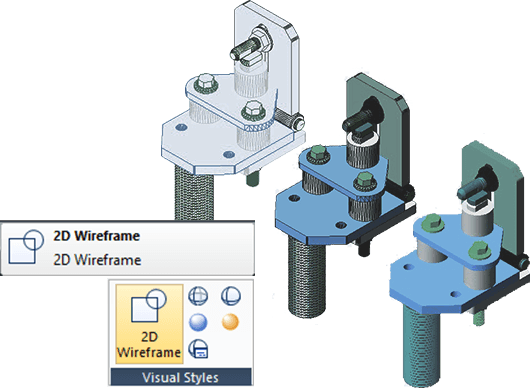
Although hiding lines can enhance the drawing and clarifies the design, shading produces a more realistic image of your model.
You can modify shaded objects as you normally would. When a shaded object is selected, the wireframe and grips appear on top of the shading.

How to hide lines or shade 3D objects
Hides or shapes for 3D objects in the current drawing, suppresses the display of the objects (partly or entirely) that are located behind other objects, or generates a simply shaded image displayed in the current view. You can use HIDE command to remove the hidden lines to verify the current placement of these surfaces. Hiding background lines makes the display much clearer, but you cannot modify hidden-line or render views.

How to apply materials and textures
You can add materials to objects in your drawings to provide a realistic effect. In the context of rendering, materials describe how an object reflects or transmits light. Within a material, maps can simulate textures, bump effects, reflections, or refractions.

Use the MATERIAL command to apply different materials to your 3D objects.
Adjust properties like color, texture, and reflectivity to enhance realism.
How to change a 3D view dynamically
You can view objects from any viewing direction by holding down mouse or other pointing devices and moving dynamically.
With dynamic viewing, you can display the effects of changing viewpoint while you change the view. You can execute move or zoom operations as the 3D Orbit is active. When the 3D Orbit is active, you are not allowed to modify objects. GstarCAD supports more orbit options like Free Orbit, 3D Continuous Orbit, Orbit along the X-axis, Orbit along the Y-axis, Orbit along Z-orbit and 3D Orbit Center. Additionally users can create two new meshes through DISH and DOME commands. To close 3D Orbit, press Enter, ESC or choose Exit from the shortcut menu.

For more 3D design features in GstarCAD, please visit https://www.gstarcad.net/cad/feature-3ddesign/
Discover more from Gstarsoft's Blog
Subscribe to get the latest posts sent to your email.