This article covers simple rendering techniques in GstarCAD. You’ll learn how to enhance your designs visually, whether you’re a beginner or an experienced user.
Rendering creates a 2D image based on a 3D scene. It shades the scene’s geometry using the lighting you’ve set up, the materials you’ve applied, and environmental settings such as background and fog. At a basic level, you can use the render command to render your model without applying any materials, adding any lights, or setting up a scene. You cannot move or adjust this light.
Light
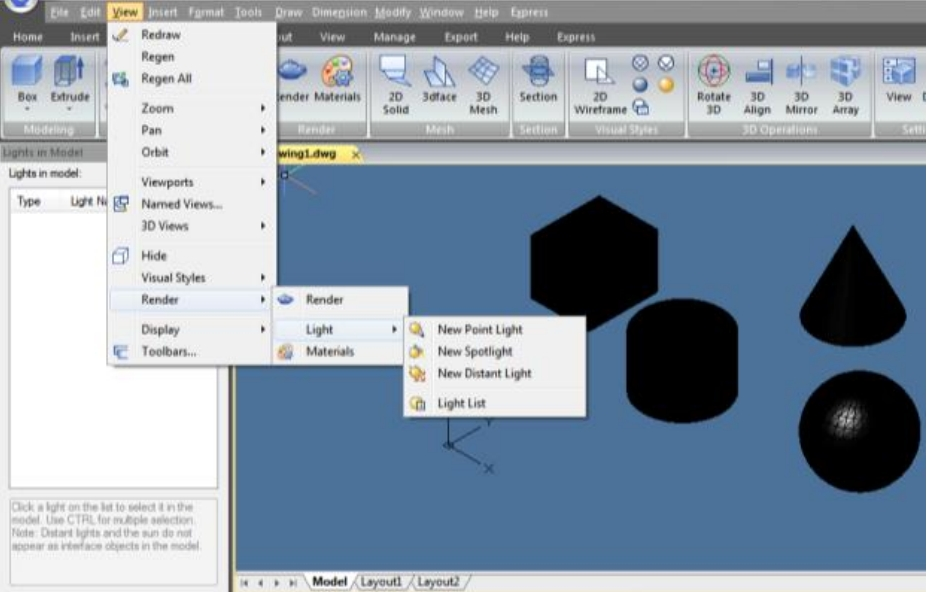
Lighting adds the finishing touch to the scene. You can add point lights, spotlights, and distant lights and set the location and photometric properties of each.
Point Light: A point light radiates light in all directions from its location and does not target an object.
Spotlights: A spotlight can be directed towards an object.
Distant Lights: Simulates the effect of sunlight and can be used to show how the shadows cast by a structure affect the surrounding area.
Light List: Displays a list of type and light name used in model. Distant lights and the sun do not appear as interface objects in the model.

Materials
You can add materials to objects in your drawings to provide a realistic effect. In the context of rendering, materials describe how an object reflects or transmits light. Within a material, maps can simulate textures, bump effects, reflections, or refractions.

Discover more from Gstarsoft's Blog
Subscribe to get the latest posts sent to your email.