Tips & Tricks when using Mline

Mline (short form for Multiple line) is used to create multiple parallel lines, shortcut key is ML.

MLSTYLE command is used to create, modify, and manage style of multiple lines.

CAD system has provided a default multiple line style called STANDARD, this STANDARD style is simple to use and we can directly draw two parallel lines with it, as shown in the following picture,

With Mline, we can also draw multiple parallel lines and specify the line type,line width and so on in the Multiline Styles dialog box, as shown in the following picture,

Please note:

Multiline Style is different from Text Style and Dimension Style: we need to do the setting of Multiline Style before creating multiple lines, because we can not modify once the setting is done !

How to access MLSTYLE

  1. When using GstarCAD Classic workspace,

Format > Multiline Style, as shown in the following picture,

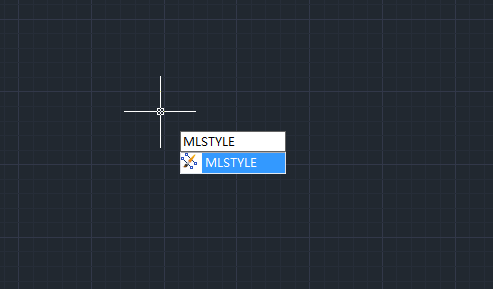
2. We can also enter “MLSTYLE”, and press Enter key to pop up the Multiline Style dialog box,
The above dialog box is a simple one where we can see the multiline styles available and the preview of them, we can create a new style or modify an existing one, we can also save a style as *.mln file or load a saved *.mln file.

As we can see, there is only one style STANDARD and the “Set Current”, “Rename”, and “Delete” button are disabled, once we have created lines using STANDARD style, the “Modify” button turns grey as soon as possible.

Click “New” button to pop up the New Styles dialog box prompting us to name the new style,

After naming the new style, we are prompted to continue with the following dialog box,

How to edit multiline

Double-click the multiline to pop up the following dialog box, or we can enter MLEDIT then press Enter key,


Discover more from Gstarsoft's Blog

Subscribe to get the latest posts sent to your email.

GstarCAD Blog

www.gstarcad.net

Related Posts

GstarCAD Deep Dive: How Multiple Top-Level Windows Change Multi-Drawing Workflows

CAD work rarely happens in just one drawing. An engineer may keep a current design open while referring to an earlier revision. A mechanical designer may copy standard details from…

GstarCAD Mechanical 2027: Smarter Workflows, Better Compatibility

Mechanical design requires more than accurate geometry. From standardized dimensions and engineering symbols to parts lists, calculations, and manufacturing documentation, mechanical engineers need CAD software that can support both drawing…

Leave a Reply

Don't Miss out

GstarCAD Deep Dive: How Multiple Top-Level Windows Change Multi-Drawing Workflows

  • September 23, 2026
GstarCAD Deep Dive: How Multiple Top-Level Windows Change Multi-Drawing Workflows

Gstarsoft and AppliCAD Launch GstarSolutions Thailand, Deepening Their Partnership in the Thai Market

  • September 21, 2026
Gstarsoft and AppliCAD Launch GstarSolutions Thailand, Deepening Their Partnership in the Thai Market

Modernizing Without Disruption: What European SMEs Can Learn from SNIE’s Experience

  • September 18, 2026
Modernizing Without Disruption: What European SMEs Can Learn from SNIE’s Experience

GstarCAD Mechanical 2027: Smarter Workflows, Better Compatibility

  • September 15, 2026
GstarCAD Mechanical 2027: Smarter Workflows, Better Compatibility

AI Rendering Workflow: How GstarRender Improves Design Visualization

  • September 8, 2026
AI Rendering Workflow: How GstarRender Improves Design Visualization

What Is CAD? A Beginner’s Guide to Learning CAD

  • September 1, 2026
What Is CAD? A Beginner’s Guide to Learning CAD

Discover more from Gstarsoft's Blog

Subscribe now to keep reading and get access to the full archive.

Continue reading

Discover more from Gstarsoft's Blog

Subscribe now to keep reading and get access to the full archive.

Continue reading