How to reload and bind all the references?

How to reload all the references?

When multiple file references are modified, the External Reference Palette will display the drawings that need to be reloaded, we can select the drawing to be reloaded and right click, in the right-click menu, select “Reload”, as shown in the following picture,

There is no “Reload all” option allowing us to reload all the references that need to be reloaded, but we can reload all using one of the following methods.

  1. Right click the blank space of the External Reference Palette, select the first option “Reload All References”, as shown in the following picture,

2. There is a triangle button beside the Refresh button, click it we can see the “Reload All References” option, as shown in the following picture,

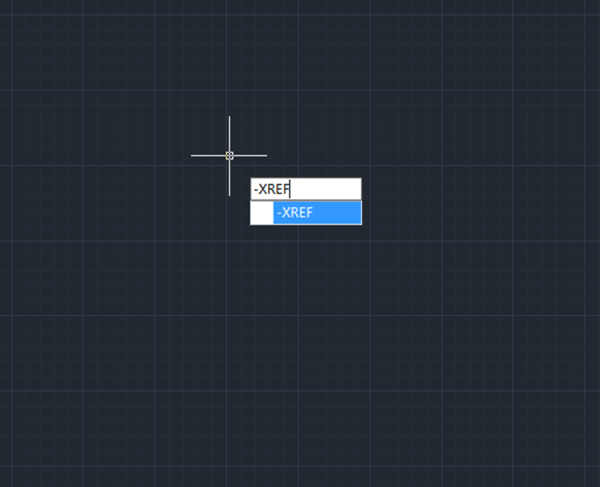
3. Enter “-XREF”, then press Enter key,

we are prompted to enter an option, enter R then press Enter key,

then we are prompted to input xref going to reload, enter *, as shown in the following picture,

How to bind all the external references?

  1. Right click the blank space of external reference palette, and click “Select All” to have all the external references selected,

If the external references are in tree view, there is no “Select All” option, as shown in the following picture,

We have to switch it to list view.

2. Another way is to enter “-XREF”, then press Enter key, when prompted enter an option, enter B,

Then we are prompted to input Xref name to bind, just enter * then press Enter key, all the external references would be bound.

GstarCAD Blog

www.gstarcad.net

Related Posts

The Ultimate Guide to GstarCAD Mechanical 2026: The Future of Manufacturing Design

GstarCAD Mechanical 2026 drafting/design software, covers all fields of mechanical design.

How to Calculate CAD Area Quickly?

As a CAD designer, are you frustrated by the cumbersome and error-prone manual CAD area calculation? GstarCAD offers multiple efficient CAD area calculation methods!

Leave a Reply

Don't Miss out

Gstarsoft Showcases Integrated CAD + BIM Solutions at BIM World Paris 2026

  • April 3, 2026
Gstarsoft Showcases Integrated CAD + BIM Solutions at BIM World Paris 2026

Boost CAD Productivity with GstarCAD 2026’s XTP Import Feature

  • March 24, 2026
Boost CAD Productivity with GstarCAD 2026’s XTP Import Feature

Case study: How TopenTech Optimized Equipment Diagnostics and Field Productivity with GstarCAD

  • March 9, 2026
Case study: How TopenTech Optimized Equipment Diagnostics and Field Productivity with GstarCAD

The Ultimate Guide to GstarCAD Mechanical 2026: The Future of Manufacturing Design

  • January 30, 2026
The Ultimate Guide to GstarCAD Mechanical 2026: The Future of Manufacturing Design

GstarCAD 2026 DWG Comparison: Boost Design Efficiency

  • January 16, 2026
GstarCAD 2026 DWG Comparison: Boost Design Efficiency

How to Calculate CAD Area Quickly?

  • December 25, 2025
How to Calculate CAD Area Quickly?

Discover more from Gstarsoft's Blog

Subscribe now to keep reading and get access to the full archive.

Continue reading


