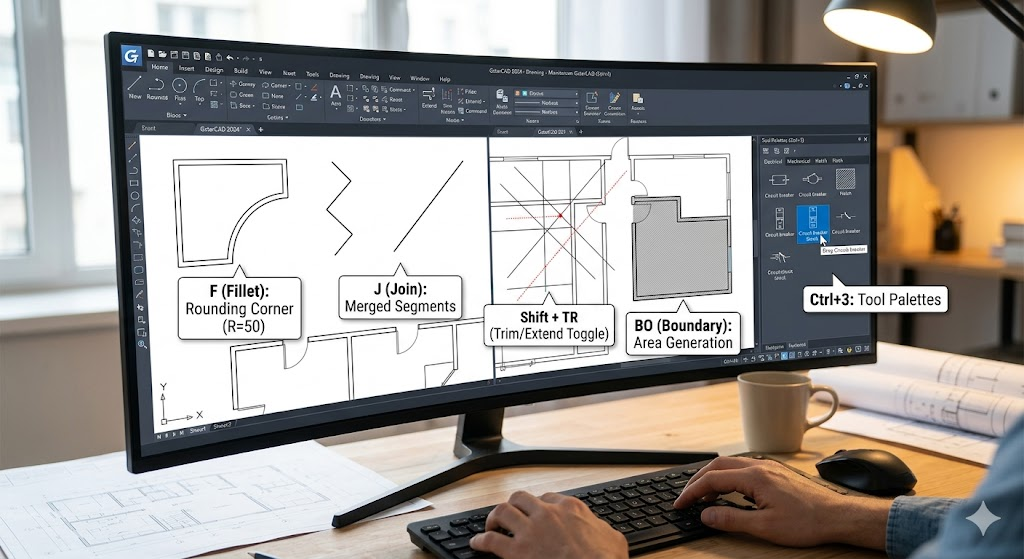
Generally speaking, 3D CAD software requires better hardware than 2D CAD software, but when dealing with complex drawings, especially drawings with lots of texts or solid fills, the CAD system with high-end graphics card may slow down, not mention the old or low-end ones.
But still, if we only have old or low-end graphics cards, we can do something to get the best performance.
1.Close Properties Panel (CTR+1) or hide Properties Panel, open it when you need to use it.
Properties Panel is commonly-used in CAD, but if think the CAD system is slowing down and you are not using it, you can close it.
2. Close the following functions or change the system variables to 0. Users can switch it on or off in the status bar.
* Close Selection Cycling
You won’t need this if you don’t select overlapping objects and you can switch it on/off in the status bar, as shown in the following picture,

* Close dynamic UCS
Dynamic UCS is not very commonly used by many people, we can close it and when it’s closed, the system variable UCSDETECT=0
Close Ortho Mode, press F8 to switch it on/off, you can also close it in the status bar as shown in the following picture,
System variable ORTHOMODE = 0

* Close Dynamic Input in the status bar as shown in the following picture,
System variable DYNMODE =0

* Disable the tooltips
The tooltips are displayed when the cursor is hovering over a button on a ribbon or toolbar, if you are quite familiar with the functions and commands, you can disable it in the Options dialog box, as shown in the following picture,

* Close Quick Properties
System Variable = 0
* Close Snap Mode using F9 or click the button in the status bar, as shown in the following picture,

System Variable SNAPMODE = 0
* Disable Selection Preview, we can customize it in the Select Set tab of the Options dialog box, as shown in the following picture,

System Variable SELECTIONPREVIEW = 0
* The system variable Property preview controls the preview of certain selected objects being modified. For example, select a line and click the Color and unfold the color drop-down list in the Properties Panel, we can see that the preview effect would display as we change different colors, as shown in the following picture,


3. If you are using Windows Vista or Windows 7, I suggest you change the desktop themes to “Windows Classic” and close Aero function as well.
Discover more from Gstarsoft's Blog
Subscribe to get the latest posts sent to your email.