How to Change Font Styles in CAD Software

To change font styles in CAD software, follow these general steps:

Open the Text Style Manager:

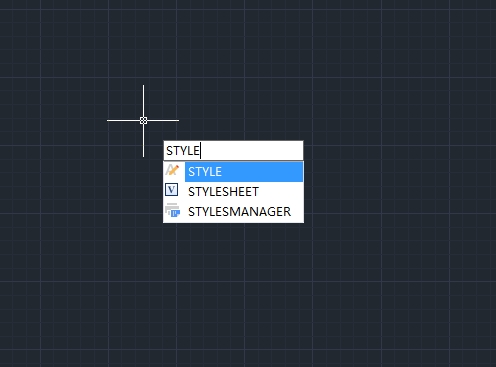
Type STYLE in the command line and press Enter. This opens the Text Style dialog box.

Create a New Text Style:

Click on the “New” button to create a new text style.

Enter a name for the new style and click OK, shown as below,

Select Font:

In the Text Style dialog, select the font you want to use from the Font Name drop-down menu.

You can also adjust the height, width factor, and oblique angle if needed.

Set as Current:

After configuring your font settings, click on the “Set Current” button to make this the active text style.

Apply the Text Style:

When you create text in your drawing, make sure to select the new text style from the properties toolbar or the text creation dialog.

Close the Text Style Manager:

Once done, close the Text Style dialog box to return to your drawing.

GstarCAD Blog

www.gstarcad.net

Related Posts

GstarCAD 2026 DWG Comparison: Boost Design Efficiency

GstarCAD 2026 has introduced a new DWG Compare tool designed to eliminate the manual effort of identifying revisions between drawing versions. By using the COMPARE command, the software automatically highlights additions in red, deletions in green, and identical elements in gray using revision clouds. This feature streamlines the proofreading process for architects and engineers, allowing for instant visual verification of changes across any DWG file.

How to Calculate CAD Area Quickly?

As a CAD designer, are you frustrated by the cumbersome and error-prone manual CAD area calculation? GstarCAD offers multiple efficient CAD area calculation methods!

Leave a Reply

Don't Miss out

Gstarsoft Showcases Integrated CAD + BIM Solutions at BIM World Paris 2026

  • April 3, 2026
Gstarsoft Showcases Integrated CAD + BIM Solutions at BIM World Paris 2026

Boost CAD Productivity with GstarCAD 2026’s XTP Import Feature

  • March 24, 2026
Boost CAD Productivity with GstarCAD 2026’s XTP Import Feature

Case study: How TopenTech Optimized Equipment Diagnostics and Field Productivity with GstarCAD

  • March 9, 2026
Case study: How TopenTech Optimized Equipment Diagnostics and Field Productivity with GstarCAD

The Ultimate Guide to GstarCAD Mechanical 2026: The Future of Manufacturing Design

  • January 30, 2026
The Ultimate Guide to GstarCAD Mechanical 2026: The Future of Manufacturing Design

GstarCAD 2026 DWG Comparison: Boost Design Efficiency

  • January 16, 2026
GstarCAD 2026 DWG Comparison: Boost Design Efficiency

How to Calculate CAD Area Quickly?

  • December 25, 2025
How to Calculate CAD Area Quickly?

Discover more from Gstarsoft's Blog

Subscribe now to keep reading and get access to the full archive.

Continue reading