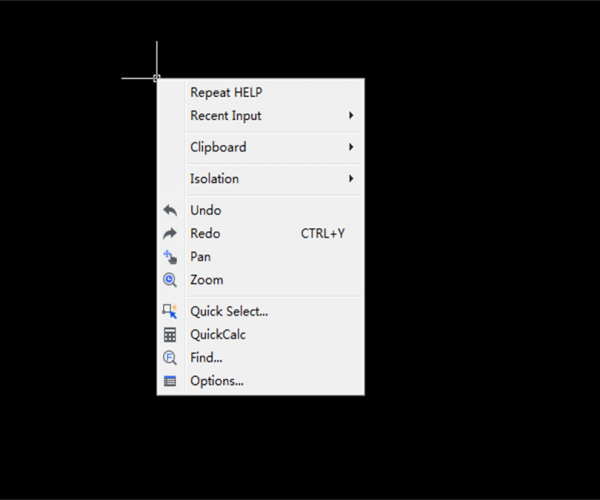
- Right click to make the right menu show up
Using the right click mouse button in the graphics window, toolbar and dialog box will open up the right click menu, as shown in the following picture,
With the right click button, CAD users don’t have to enter commands or click icons over and over again, which improves the working efficiency.
Right click in the graphics window, and you can see the recently-used command is shown at the top of the menu, as shown in the following picture,

2. Right click to confirm and repeat commands
Some designers choose to use the right click button in the drawing area to confirm and repeat the last command and not to use the shortcut menu.
To do that, we need to do some setups in the Options dialog box. Enter Options and press Enter, the Options dialog box would pop up, as shown in the following picture,

3. Right click to open the Snap shortcut menu
When we need to temporarily use certain snap function while drawing, we could either enter the shortcut key or use the right button.
Press SHIFT or CTRL key and right click on the graphics window to pop up the snap shortcut menu, as shown in the following picture,

If we want to customize the right click action, we can do it in the CUI dialog box. By entering CUI and press Enter, we will open it, as shown in the following picture, but in most cases, there is no need to make any changes to the right click action.

4. Right click to move, copy or paste as block
Select the object, keep pressing the right click button and drag it and a menu would pop up, as shown in the following picture, where users can choose to Move, Copy or Paste as Block,

The above are some commonly used functions about the right click mouse button, if you have your own opinions or ideas to share, please do not hesitate, just leave a comment or send me a message.