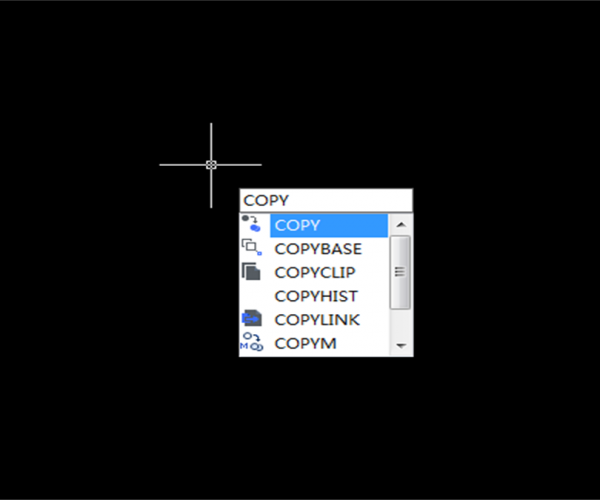
There are many reasons for this and I have concluded some common causes.
1.Independent DGN linear data
Problem: no prompts when copying, no contents when paste
This kind of drawings contain a lot of DGN linear data and therefore the drawings are extremely large in size and poor in performance.
DGN data is usually imported from MICROSTATION, although many people have never used MICROSTATION before, the DGN data may be copied and pasted from other drawings. The data would multiply if this happens in one drawing file. Users soon would be unable to use copy and paste.
Solution: purge the DGN data
There are many ways to purge the DGN data, we can use the PU command in CAD. Type Purge, as shown in the following picture,

Press Enter, check the “automatically purge orphaned data” at the bottom of the Purge dialog box, as shown in the following picture,

2. Custom object and Anchor points
Problem: Unable to copy to clipboard, or no prompts when copying, or only part of the graphics when pasting.

Solutions:
- Use software that supports these custom objects
- If you can’t find a plugin or software that supports these objects or anchor points, you may have to explode these custom objects into regular objects with EXPLODE command.
3. What you paste is not the recent copied data
One of users has asked why he is not pasting the recent graphics, the system was normal just a few minutes ago. I suggest open a *.Word and try the copy & paste again to see if the function works well. If it has the same problem, then there must be something wrong with the WINDOWS clipboard. We can clear the clipboard cache. If it still doesn’t work, just restart the computer. If restart doesn’t help, the problem may be caused by drawing file data.
4. Error data
If the problem is caused by error data, if the drawing files contain error data, it would affect Copy & Paste. We can RECOVER or AUDIT the drawing after opening.
The reasons for not being able to Copy & Paste may be complicated and I have just summarized the most common four reasons, please leave a message or comment the blog to tell me about your thoughts.
Discover more from Gstarsoft's Blog
Subscribe to get the latest posts sent to your email.