How do I save time converting files layers with Layer translator

If you ever have received a set of DWG files from a client and want to clean up the layers according to my drawing standards?

The solution is quite simple, and powerful. Using Layer Translator tool, you can read a specific drawings layers or a DWS (Drawing Standards) file and use them as the target then select the drawings you want to translate layers from to your standard layers and map them.

You can access to Layer Translator from by type in LAYTRANS command or by menu> Format> Layer Tools> Layer Translator.

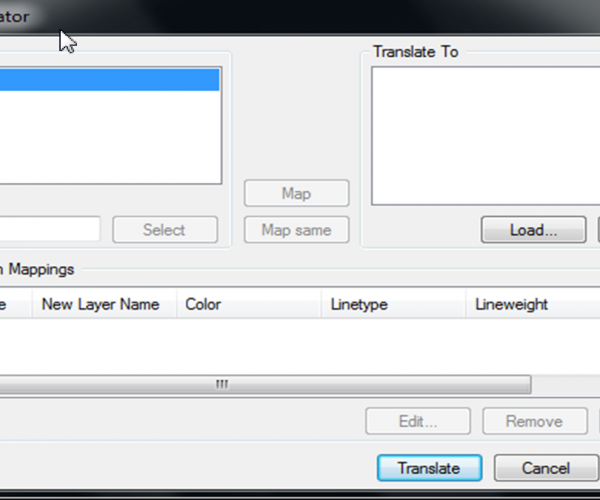
For example, you can map and translate same layer name as shown below:

With the layer translator settings, you can setup layer properties to be translated into the assigned layer of your drawing standards that you need.

  • Force Object Color to BYLAYER: Specifies whether or not every object translated takes on the color assigned to its layer.
  • Force Object Linetype to BYLAYER: Specifies whether or not every object translated takes on the linetype assigned to its layer.
  • Translate Objects in Blocks: Specifies whether or not objects nested within blocks are translated.
  • Write Transaction Log: Specifies whether or not a log file detailing the results of translation is created. If this option is selected, a log file is created in the same folder as the translated drawing. The log file is assigned the same name as the translated drawing, with a .log file name extension.
  • Show Layer Contents When Selected: Specifies which layers to display in the drawing area.

When you are done you will be promoted to save the mapping data to use again in a .DWS (Drawing Standards) file.

  • GstarCAD Blog

    www.gstarcad.net

    Related Posts

    The Ultimate Guide to GstarCAD Mechanical 2026: The Future of Manufacturing Design

    GstarCAD Mechanical 2026 drafting/design software, covers all fields of mechanical design.

    How to Calculate CAD Area Quickly?

    As a CAD designer, are you frustrated by the cumbersome and error-prone manual CAD area calculation? GstarCAD offers multiple efficient CAD area calculation methods!

    Leave a Reply

    Don't Miss out

    Gstarsoft Showcases Integrated CAD + BIM Solutions at BIM World Paris 2026

    • April 3, 2026
    Gstarsoft Showcases Integrated CAD + BIM Solutions at BIM World Paris 2026

    Boost CAD Productivity with GstarCAD 2026’s XTP Import Feature

    • March 24, 2026
    Boost CAD Productivity with GstarCAD 2026’s XTP Import Feature

    Case study: How TopenTech Optimized Equipment Diagnostics and Field Productivity with GstarCAD

    • March 9, 2026
    Case study: How TopenTech Optimized Equipment Diagnostics and Field Productivity with GstarCAD

    The Ultimate Guide to GstarCAD Mechanical 2026: The Future of Manufacturing Design

    • January 30, 2026
    The Ultimate Guide to GstarCAD Mechanical 2026: The Future of Manufacturing Design

    GstarCAD 2026 DWG Comparison: Boost Design Efficiency

    • January 16, 2026
    GstarCAD 2026 DWG Comparison: Boost Design Efficiency

    How to Calculate CAD Area Quickly?

    • December 25, 2025
    How to Calculate CAD Area Quickly?

    Discover more from Gstarsoft's Blog

    Subscribe now to keep reading and get access to the full archive.

    Continue reading