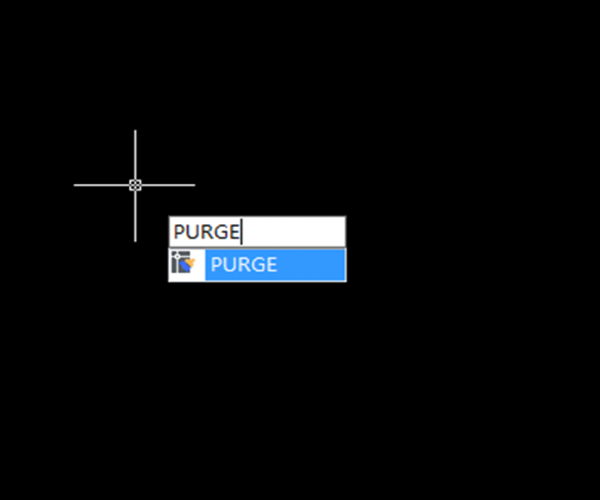
Want to clean up your drawings from extra or garbage layers?
The obvious way to purge layers is to use the PURGE command but sometimes it’s not enough. Purge might need to be run several times. Make sure to select purge nested items. Notice that in the purge dialog box you can find items you cannot purge.

- the active or current layer
- layers with objects
- layer 0
- layer Defpoints (It can be purged if you remove all dimensions)
- layers in XREFs (
xref -dependent layers
Here there are some tips to purge unwanted layers:
– Layers can exist nested in blocks. They can be used by empty text strings (QTEXTMODE can be used to show these) or lines without length or even viewports that have the layer frozen.
– LAYMRG (Layer Merge) or LAYDEL (Layer Delete) might be able to help you either merge the layer to for example layer 0 or if you don’t care what’s on the layer delete it.
LAYWALK is also useful to see what is in each layer and can purge unreferenced layers.
LAYTRANS can also purge layers. In the Layer Translator, right-click in the Translate From list. Click Purge Layers.

– To use the filters in the Properties palette (QSelect) can also work but you might need to explode everything several things first.

- Another way to generally purge a drawing is to Wblock the entire drawing to a new drawing or use WBLOCK and * for the whole drawing or you can Wblock selected objects.

– You can also try to isolate the problem by deleting 50% of the drawing, try to purge and then keep repeating it until nothing is left. If the layer is still there it might be used by some kind of object that is not purged using the plain purge command.
– DXF can also help. Save as DXF or use DXFOUT command and open in a text editor and search for the layer to see where it is used.
Discover more from Gstarsoft's Blog
Subscribe to get the latest posts sent to your email.