The Property Panel is a useful tool in CAD program, then how does it usually help us in different ways?
- Check parameters of View
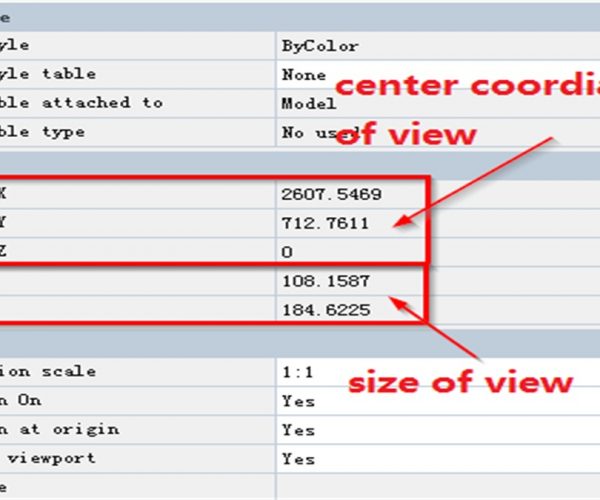
Some CAD starters don’t really know the real size of graphics window in CAD, that’s why they ask questions like “how the line I draw is so short” or “Why the point I draw by entering coordinates is actually out of the view?” Not even for starters but also designers with years of experience sometimes have difficulty understanding some anomalies.
When we open the Property Panel without selecting any objects, there are some regular parameters of the drawing, as shown in the following picture,

When we zoom in or out the view, the height and width of it will change accordingly.
2. Check and modify the parameters of objects
After we select a certain object, the Property Panel will display the parameters of that objects so we can have a overall understanding of the object. For example, for Pline and Hatch, we can not only see regular parameters but also Area parameter and Length parameter.
When text or dimension displays abnormally, we can check the text style and dimension style as well as some other related parameters to check the problems if any.
Some parameters in the Property Panel are editable while others are not. For example, if we select a line object, the Property Panel shows regular parameters, start coordinates, end coordinates, length, angle, etc. Among these parameters, the start and end coordinates are editable while the length and angle are not editable because they are calculated results, as shown in the following picture,

When we have selected multiple objects, the Property Panel will show their common parameters, if the common parameters are the same, then it shows the property name or value, if not, it shows “Multiple”. You can edit the parameters as long as they are editable even though they are not the same.


Discover more from Gstarsoft's Blog
Subscribe to get the latest posts sent to your email.