Troubleshooting: Why I can’t find text using Find & Replace?

When we want to batch find & replace text, we can use Find & Replace function, but sometimes we can see the text, but just can’t find it using Find command, how is that?

  1. Wrong search range

This happens when we only want to find and replace text in certain range instead of the entire drawing, and we would click the Select objects button after “Find where”, and when prompted to select object shown as below, normally we would assume that we will get the right results if we window select objects that contain the text, however, since text can be part of a block, when we window select a block from left to right, the block isn’t selected and therefore the text within the block cannot be found using Find command.

Troubleshooting: Why I can't find text using Find & Replace?

2. Inappropriate search options

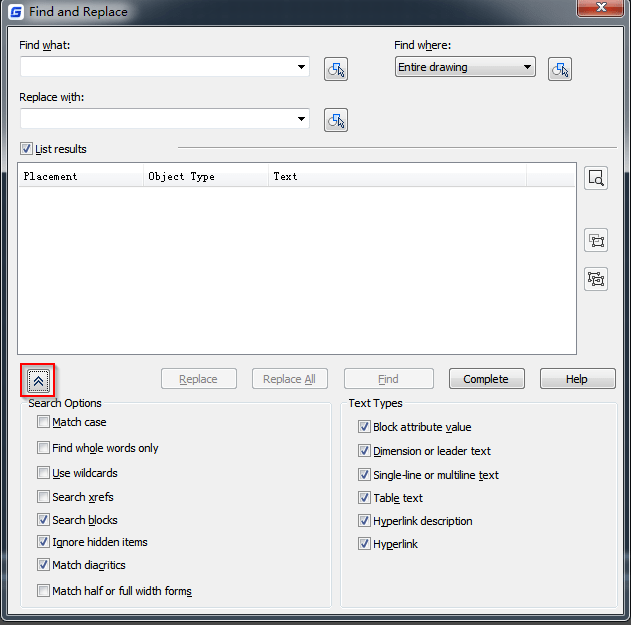
This happens when the text to be searched doesn’t conform with the search options we have selected, for example, you have entered wildcards without checking the box before “Use wildcards”; or let’s say you have check the Match case box, but the text you entered is not case-sensitive, all causing you unable to find the text.
Troubleshooting: Why I can't find text using Find & Replace?

We don’t need to pay extra attention to the Search Options, but if we can’t find text that’s visible, we can check those options.

3. Spacial text objects

Some users tend to use attribute text as normal text, and don’t include attribute into blocks, they seem like text but they are not normal text and can’t be found using Find command, shown as below,

Troubleshooting: Why I can't find text using Find & Replace?

GstarCAD Blog

www.gstarcad.net

Related Posts

How to work with raster images in CAD?

A raster image in CAD (Computer-Aided Design) refers to a type of digital image that is composed of a grid of individual pixels, each with its own color value.

How to work with multiple views of a single drawing?

GstarCAD supports opening and working with several views of the same drawing simultaneously.

Leave a Reply

Don't Miss out

Gstarsoft Showcases Integrated CAD + BIM Solutions at BIM World Paris 2026

  • April 3, 2026
Gstarsoft Showcases Integrated CAD + BIM Solutions at BIM World Paris 2026

Boost CAD Productivity with GstarCAD 2026’s XTP Import Feature

  • March 24, 2026
Boost CAD Productivity with GstarCAD 2026’s XTP Import Feature

Case study: How TopenTech Optimized Equipment Diagnostics and Field Productivity with GstarCAD

  • March 9, 2026
Case study: How TopenTech Optimized Equipment Diagnostics and Field Productivity with GstarCAD

The Ultimate Guide to GstarCAD Mechanical 2026: The Future of Manufacturing Design

  • January 30, 2026
The Ultimate Guide to GstarCAD Mechanical 2026: The Future of Manufacturing Design

GstarCAD 2026 DWG Comparison: Boost Design Efficiency

  • January 16, 2026
GstarCAD 2026 DWG Comparison: Boost Design Efficiency

How to Calculate CAD Area Quickly?

  • December 25, 2025
How to Calculate CAD Area Quickly?

Discover more from Gstarsoft's Blog

Subscribe now to keep reading and get access to the full archive.

Continue reading