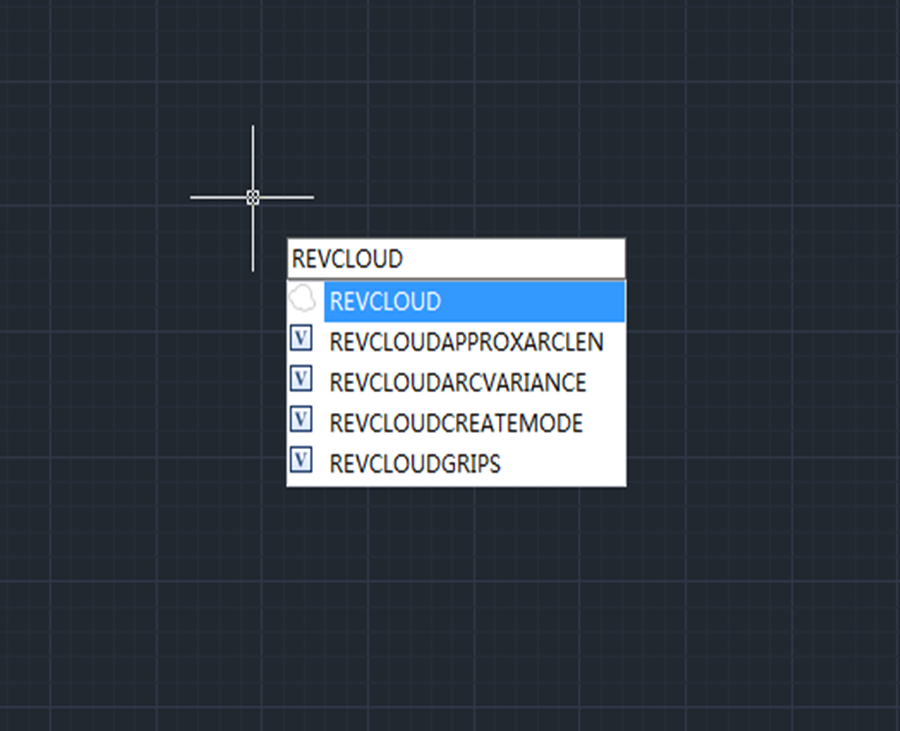
When checking or inspecting drawings, we usually need revision cloud to mark the objects to be modified. Revision cloud is a special polyline that is easy-to-use.
But sometimes users may have trouble with revision cloud, such as unable to close revision cloud, the arc being too small to be seen, or not knowing how to draw revision cloud with lineweight.
1.Basic about Revcloud
To access REVCLOUD command, find Home tab > Draw panel > REVCLOUD when using 2D Drafting workspace, shown as below,

or find Draw > Revision Cloud when using GstarCAD Classic workspace, shown as below,

or just and REVCLOUD and press Enter key,

Let’s start with Freehand in Revision Cloud.
After executing Freehand in REVCLOUD command, we’re prompted to specify first point and several options are listed, shown as below,

As we can see, there are Arc length, Object, Rectangular, Polygonal, Freehand, Style, etc.
Just specify the first point in the drawing and then move the cursor, and we can see a serious of continuous arcs appear where the cursor moves, shown as below,

We can set the minimum radius for arc. When we use Freehand in Revcloud command, the system will automatically calculate the radius of arc according to the movement of the cursor, and that’s why some arcs seem to have different radius.
Move the cursor close to the starting point of the revision cloud, and the revision cloud will be closed if the cursor is close enough to the starting point, voila, the revision cloud is completed.
One of the reason that we can’t close a revision cloud is that the arc is too small, and we need to adjust it in the settings.
2. How to adjust the arc length of revision cloud
We’ll need larger arc length when the drawing is relatively large.
After executing REVCLOUD command, enter A and press Enter key to get the following prompts.

The default arc length is 0.5, we can directly enter the arc length or define the arc length by specifiying two points.

3. How to modify a finished revision cloud
We can enter M and press Enter key,

Then we’re prompted to select polyline to modify,

we can select a point from the revision cloud as a starting point to draw a new revision cloud, then specify the end point from the revision cloud, and this revision cloud will devide the old revision cloud as two. Then erase one of them as prompted, shown as below,

Discover more from Gstarsoft's Blog
Subscribe to get the latest posts sent to your email.