Graphics window is an area where users can view, draw and edit drawings, so it’s very important for beginners to know more about graphics window: what’s the size of the graphics window? How to adjust it?
CAD provides theoretically limitless virtual space, but since our screen is fixed and there aren’t many changes to the size of the graphics window, then how can a graphics window display spare parts as small as a few millimeters and maps as big as tens of thousand meters?
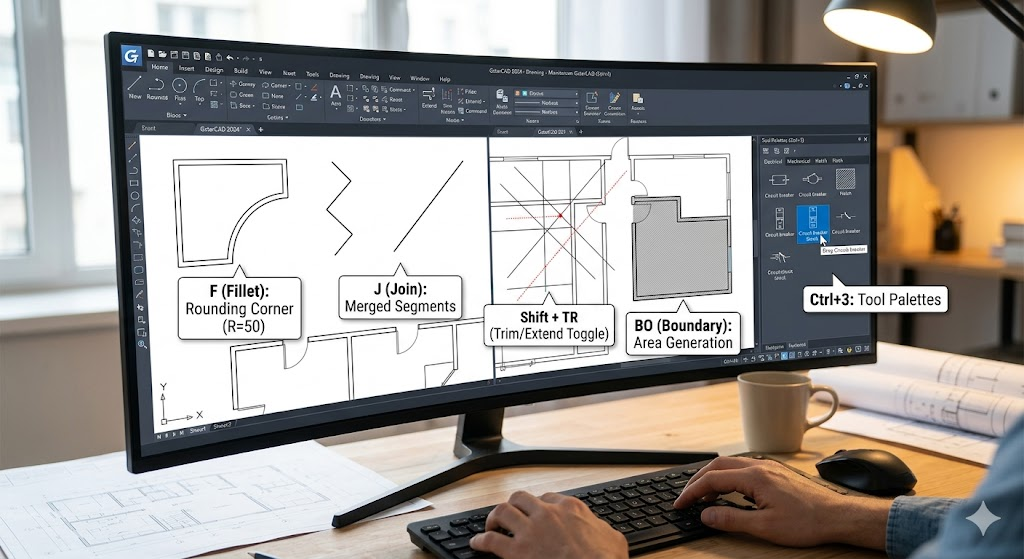
Open the CAD software, if the Properties panel doesn’t appear, use CTRL + 1 to open it.

Grids are rectangular patterns of lines or dots in the graphics window, it’s a useful tool and is more like the coordinate paper used in hand-drawn drawings. Grids can be switched on or off by clicking the icon shown in the following status bar.

Please note that the User Coordinates System Icon only shows the X-axis and Y-axis and doesn’t show the origin of coordinates.
Please take a look at the View in the Properties panel, the height and width show the ranges of the graphics window so we can make sure if the current viewport is suitable for our drawing.
What if the viewport is not suitable?
That’s pretty easy, use zoom and pan just like you are working on your Google map,
1.Zoom
The easiest way is to zoom with your mouse wheel scrolling up and down. By default, scrolling the mouse wheel up is to zoom in while scrolling down is to zoom out.
When the viewport can’t be zoomed out anymore, we would see a red line and a green line, at this time, their intersection point is the origin of coordinates.
2. Pan
The easiest way to move the viewport is by using the middle mouse button. Just press and drag the middle mouse button and the viewport will move along with the cursor. When we look at the View in the Properties Panel, we can see that the height and width of the viewport don’t change while the center changes all the time.
The CAD graphics window displays an enormous virtual 3D space through which we can view drawings just like we view the world through our camera:using the Zoom is like moving forward and backward the camera and using the Pan is like moving from left to right or from right to left. The concept of the graphics window may be abstract, but we’ll know a bit more over time.
Discover more from Gstarsoft's Blog
Subscribe to get the latest posts sent to your email.