GstarCAD Blog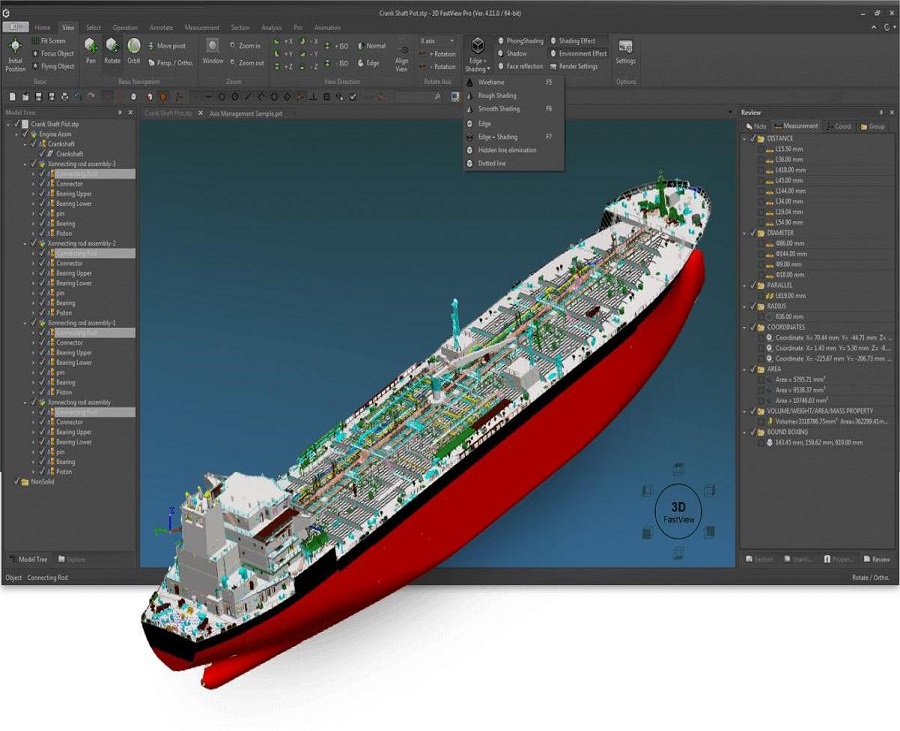
3D FastView is a lightweight 3D CAD viewer that helps users to view, assemble, markup, translate and compress large 3D CAD files easily and efficiently.
Fast and easy-to-use for large 3D CAD files
* CAD 3D view made easy
3D FastView is a fast, lightweight and easy-to-use 3D CAD model viewer. It has the capability to handle and compress large 3D CAD files allow users within a project group to access and communicate 3D data without expensive 3D CAD licence and high maintenance costs.

* User-friendly: both novice and professional users
With the intuitive interface and world-leading 3D data compress technology and practical functions, 3D FastView is very friendly to both novice users and professional users. It allows users to handle and assemble large 3D CAD files on laptop easily, efficiently and accurately, thus reducing design time and costs.

Compatible with major file formats
As a 3D CAD file viewer, 3D FastView offers robust file format support, it supports the following file formats and allows users to seamlessly work between them:
CATIA V4/V5, NX, ProE, SOLIDWORKS, SOLIDEDGE, INVENTOR, JT, PARASOLID, 3DXML, STEP / IGES / ACIS / STL / HPGL.
One solution for the entire enterprise
* Visualize different aspects of 3D CAD models
3D FastView has robust visualization capabilities to facilitate product design and manufacturing. This includes viewing 2D CAD drawings and displaying PMI/GD&T information. Users are able to create and save custom viewpoints, hide/show certain components, and generate assembly/explosion views to focus on relevant aspects. The software also provides tools for creating and saving animation, generating section cuts and 2D projections.
* Annotate and get accurate measurement
3D FastView allows users to add 2D/3D annotations and calculate model attributes. Users can record, export, import annotations and measurement data for seamless collaboration. A range of comprehensive measuring tools are available so that annotations and measurements can be easily defined and accurately displayed in a 3D perspective.
* Analyze 3D CAD model before manufacturing
3D FastView provides users with a quick and efficient way to analyze 3D models, including Undercut analysis, Draft angle analysis, 3D model compare, etc.
For example, 3D FastView Pro allows users to run a collision analysis. This way you will be aware of the mistakes in a timely manner right before manufacturing.
* Export: Translate to multiple 3D CAD files at once
In 3D FastView, users can export files to STP, IGS, CATIAV5, ACIS, Parasolid and much more file formats.
Collaboration with team members
3D FastView is able to translate 3D CAD file formats between diverse CAD systems. It even supports converting files into a lightweight, super-compressed neutral format, which retains the markup and measurement information. This allows for easy sharing with internal and external teams.

Download 3D CAD viewer software for free
Many manufacturing and engineering firms need a tool that lets them inspect details, add dimensions, and describe complex product components. 3D FastView provides CAD-like functionality, but at a more accessible cost for users who don’t require full design planning capabilities. The program is also useful for construction and architecture professionals who need in-depth project review.
3D FastView provides flexible licenses and is available on Windows, now explore more features and download free at Download 3D FastView

FAQs on 3D FastView
How do I open or create a 3D CAD file in 3D FastView?
Both 2D drawings and 3Dmodels can be opened and viewed in 3D FastView.
You can open multiple files by clicking the Open button and selecting those files you want to open in the open file dialog box.

To create a new empty file, you can click the New button, shown as marked 2 in the above picture.
You can also click Add model to add another model to the current file, shown as marked 3 in the above picture.
How to I show or Hide annotation in 3D FastView?
You can choose to show or hide their annotations in 3D FastView.
Find Annotate tab > Show/Hide panel, shown as below,

If you choose Show All, then the software will show or display all notes created on workspace.
If you choose Hide All, then all notes or annotations will be hidden.
Tips: You can hide/show one note by unchecking/checking it from the note list.