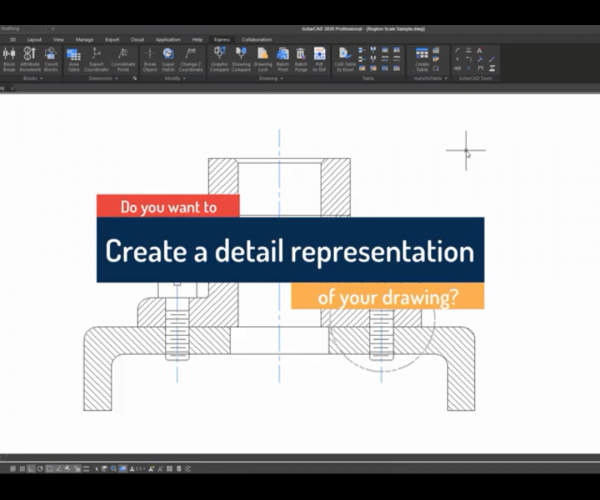
How to use GstarCAD Express Tool: Region Scale

Whats Region Scale?

With Region Scale, we can select a region in a drawing so we can copy it and place it to a new position.

How to access Region Scale in GstarCAD?

The easiest way to access Region Scale is from Menu:

Express > Modify > Region Scale, as shown in the following picture,

A step-by-step tutorial

Take the window in the following picture as an example to use Region Scale,

After executing the Region Scale, we are prompted to “Specify left up corner point for full-page proof”, as shown in the following picture,

Then we are prompted to specify right down corner point,

After selecting the two points, we are prompted to specify the position to copy,

After selecting the new position, the window is placed where we’ve chosen, then we can input the zoom scaling or not, then press Enter to finish the operation.

Voila, we’ve got the window, as shown in the following picture,

Check the video about Region Scale:

Join our discord community!

Connect with CAD experts, share technical insights, and get real-time support from the global community.

Join Discord Server

Share Your Experience

Are you using GstarCAD? Share your honest feedback on G2; it truly helps us improve and grow!

Write a Review on G2

Discover more from Gstarsoft's Blog

Subscribe to get the latest posts sent to your email.

GstarCAD Blog

www.gstarcad.net

Related Posts

Top 5 Essential GstarCAD Shortcuts for Designers

In the process of drawing and editing with GstarCAD, mastering basic functions and shortcuts can significantly reduce redundant operations while improving drawing precision and efficiency. The five features—Ctrl+3 (Tool Palettes),…

Common Methods for Inserting Images in GstarCAD

In professional CAD workflows, integrating raster images—such as site maps, reference sketches, or interior renders—is essential for visualization and project coordination. However, choosing the wrong insertion method can lead to…

Leave a Reply

Don't Miss out

Top 5 Essential GstarCAD Shortcuts for Designers

  • May 29, 2026
Top 5 Essential GstarCAD Shortcuts for Designers

Common Methods for Inserting Images in GstarCAD

  • May 22, 2026
Common Methods for Inserting Images in GstarCAD

Building the Future of Steel: How Tarkon Optimizes Structural Design with GstarCAD

  • May 7, 2026
Building the Future of Steel: How Tarkon Optimizes Structural Design with GstarCAD

GstarCAD 2026: Is It Time to Look Beyond the AutoCAD Legacy?

  • April 21, 2026
GstarCAD 2026: Is It Time to Look Beyond the AutoCAD Legacy?

Gstarsoft Showcases Integrated CAD + BIM Solutions at BIM World Paris 2026

  • April 3, 2026
Gstarsoft Showcases Integrated CAD + BIM Solutions at BIM World Paris 2026

Boost CAD Productivity with GstarCAD 2026’s XTP Import Feature

  • March 24, 2026
Boost CAD Productivity with GstarCAD 2026’s XTP Import Feature

Discover more from Gstarsoft's Blog

Subscribe now to keep reading and get access to the full archive.

Continue reading

Discover more from Gstarsoft's Blog

Subscribe now to keep reading and get access to the full archive.

Continue reading