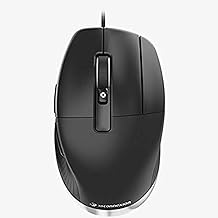
A CAD mouse is a specialized input device designed to enhance the efficiency and precision of computer-aided design work.
It typically features ergonomic designs for comfort during long hours of use, high DPI settings for accurate movements, and customizable buttons that allow users to assign specific functions or shortcuts, streamlining workflows.
What is a CAD mouse?
A CAD mouse is a mouse designed to work in CAD applications. Unlike a regular mouse, a CAD mouse has rich features and more buttons that make your CAD design efficient, easy and precise. What’s more, many CAD mouses are designed with an angle shape and in a ergonomic style for a more natural hand posture, making those CAD mouses stand out from traditional mouses.

Is There Any benefits in using a CAD mouse?
* More Comfort, Less Hand Strain
Is your mouse hand getting tired when using a mouse intensively? A CAD mouse is specially designed for CAD professionals with an angle shape to create a more natural hand posture, which is more ergonomic than regular mouses and therefore reduces your hand and muscle fatigue that you would normally encounter with regular mouses.
* More efficiency, Less time
A CAD mouse has more buttons and features than regular mouses, allowing users to perform common tasks in less time. What’s more, users can customize buttons for specific commands to reduce mouse clicks. All in all, a CAD mouse can speed up your workflow, making you work much more efficiently and precisely.
Should you get a CAD mouse?
The benefits of a CAD mouse has made many CAD designers consider buying a CAD mouse. Indeed, a CAD mouse has more buttons, and has more features that are more user-friendly to CAD users, but there are a few things that you should take into account when deciding to get a CAD mouse.
* Budget
A regular mouse costs you only a few bucks, from $5-$12 while a CAD mouse costs you more depending on the varying features it has, ranging from $30 to $400. However, a low-price CAD mouse may not take you any longer than a regular CAD mouse.
* How often do you use your mouse
If you’re using your mouse for long hours on a daily basis, you’ll need good design and a CAD mouse definitely worth it. If you just use CAD to design on a irregular basis, then having a CAD mouse that is accurate and ergonomic is not a must and probably won’t make any difference.
* the CAD software you use
CAD software and CAD mouse go hand in hand, which means whether you can make the most out of your CAD mouse partly depends on the CAD software you’re using. For example, GstarCAD 2025 is CAD software that supports 3D mouse SpaceMouse and CadMouse, users of GstarCAD can manipulate 2D views and 3D perspectives using controller’s joystick, switch views and execute commands using the mouse’s shortcut keys. So before purchasing a CAD mouse, make sure that it is compatible with the software you’re using.

How to use a CAD mouse?
Many are worried about the learning curve in using CAD mouse, is it difficult to learn? Is there any tips & tricks to tackle the learning curve? It’s naturally to have these questions, but don’t worry, it will be difficult to get used to a CAD mouse, but it’s very short time.
By following the following steps, you can enhance your CAD design experience with a CAD mouse. Please also note that the procedures may vary depending on the specific product type.
1. Connect the Mouse
Wired Connection: Plug the USB cable into a free USB port on your computer. Please wait for your computer to recognize the device.
Wireless Connection: If your CAD mouse is wireless, turn it on and ensure it’s in pairing mode. Go to your computer’s Bluetooth settings and select the mouse from the list of available devices.
2. Install Drivers and Software
Manufacturer’s Website: Visit the mouse manufacturer’s website to download the latest drivers and software.
Follow Installation Instructions: Run the installer and follow the prompts to complete the installation. This software often allows for advanced customization of the mouse.
3. Customize Buttons
Open the Mouse Software: Once installed, open the software that came with your mouse.
Button Configuration: Assign specific functions to each button. Common assignments for CAD work may include:
* Middle Button: Pan the view.
* Side Buttons: Zoom in/out or switch between tools.
* DPI Settings: Adjust the sensitivity for precision movements.
4. Practice Ergonomics
Hand Positioning: Place your hand comfortably on the mouse, please ensure that your fingers rest naturally on the mouse buttons.
Wrist Support: Consider using a wrist rest to maintain a neutral wrist position, which greatly reduces your muscle strain during long design sessions.
5. Familiarize with Shortcuts
Learn Common CAD Shortcuts: Many CAD programs have keyboard shortcuts that can be paired with mouse functions for efficiency.
Practice Using Shortcuts: Incorporate these shortcuts into your workflow to speed up your design process.
6. Adjust Sensitivity and Speed
DPI Settings: Use the mouse software to adjust the DPI (dots per inch) settings. Higher DPI allows for faster cursor movement, while lower DPI provides more precision.
Test Settings: Try different settings to see what feels most comfortable and efficient for your work and design style.
7. Utilize CAD Features
Explore CAD Software Features: Many CAD programs have features that integrate well with specialized mouse. Experiment with these features to enhance your workflow.
Use the Mouse for Navigation: Get familiar with using the mouse for navigating your workspace, manipulating objects, and executing commands.
How to maintain a CAD mouse?
Clean the Mouse
Regularly clean the mouse, especially the sensor and buttons with a soft cloth, cotton swab, or compressed air, to ensure smooth operation.
Carefully store your mouse
When you are not using your mouse or when you are traveling, store your mouse in a protective case, pouch, or bag.
Check for Software Updates
Periodically check for updates to the mouse software to access new features and improvements.
Discover more from Gstarsoft's Blog
Subscribe to get the latest posts sent to your email.