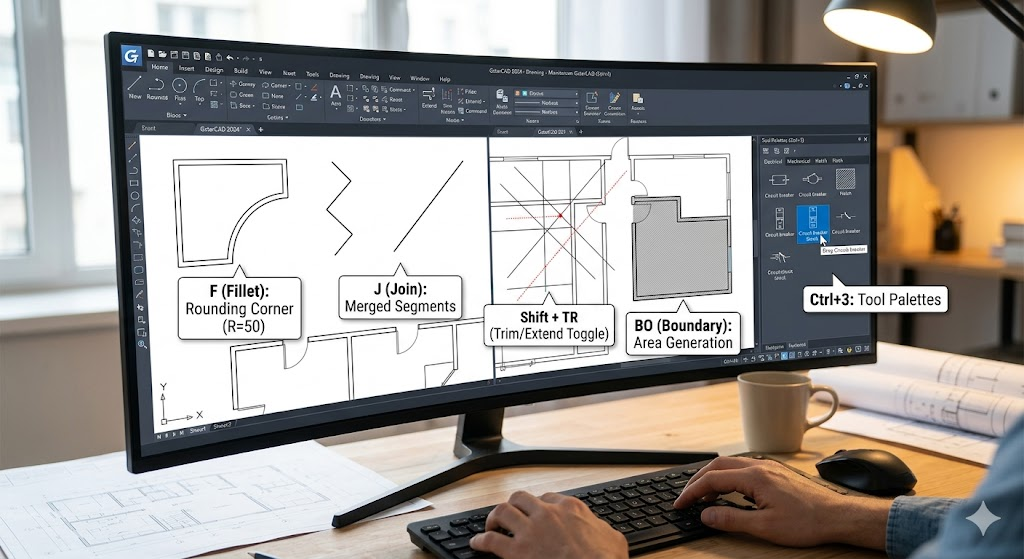
Although the J for JOIN command is only a one-key shortcut, it doesn’t mean it’s a commonly used command.
In lower version of CAD, the JOIN command has every limited functionality, making fewer people use it. The higher version of CAD has enhanced the JOIN command, but fewer people have noticed this change.
Where to find JOIN command?
- Click the drop-down arrow of the Modify, find the JOIN, as shown in the following picture,

2. Type J, then press Enter to activate the JOIN command, as shown in the following picture,

What JOIN command could do in the past
The JOIN command used to have every limited functionality, it could only join lines on the same line level and join arcs on the same periphery, as shown in the following picture,

What JOIN command can do now
In higher version of CAD, Some enhancements have been added and any graphics can be join into one. The JOIN command includes no parameters, making it every convenient to use.
- Join continuous line, arc and polyline into polyline
If we want to join continuous lines, arcs and (or) polyline into a complete polyline, there are two options: PE command or JOIN command. But if we use the PE command, we’ll have to go through steps, but with JOIN command, we just need to window select those lines to complete the join.


2. Join lines into spline
The JOIN command can join continuous splines into one spline and join continuous lines, arcs that are connected to splines into one spline.
Join our discord community!
Connect with CAD experts, share technical insights, and get real-time support from the global community.
Join Discord ServerShare Your Experience
Are you using GstarCAD? Share your honest feedback on G2; it truly helps us improve and grow!
Write a Review on G2Discover more from Gstarsoft's Blog
Subscribe to get the latest posts sent to your email.